工作流 2:生成报告#
¥Workflow 2: Generating reports
在本工作流程中,你将合并来自不同来源的数据,转换二进制数据,生成文件,并发送相关通知。最终工作流程应如下所示:
¥In this workflow, you will merge data from different sources, transform binary data, generate files, and send notifications about them. The final workflow should look like this:
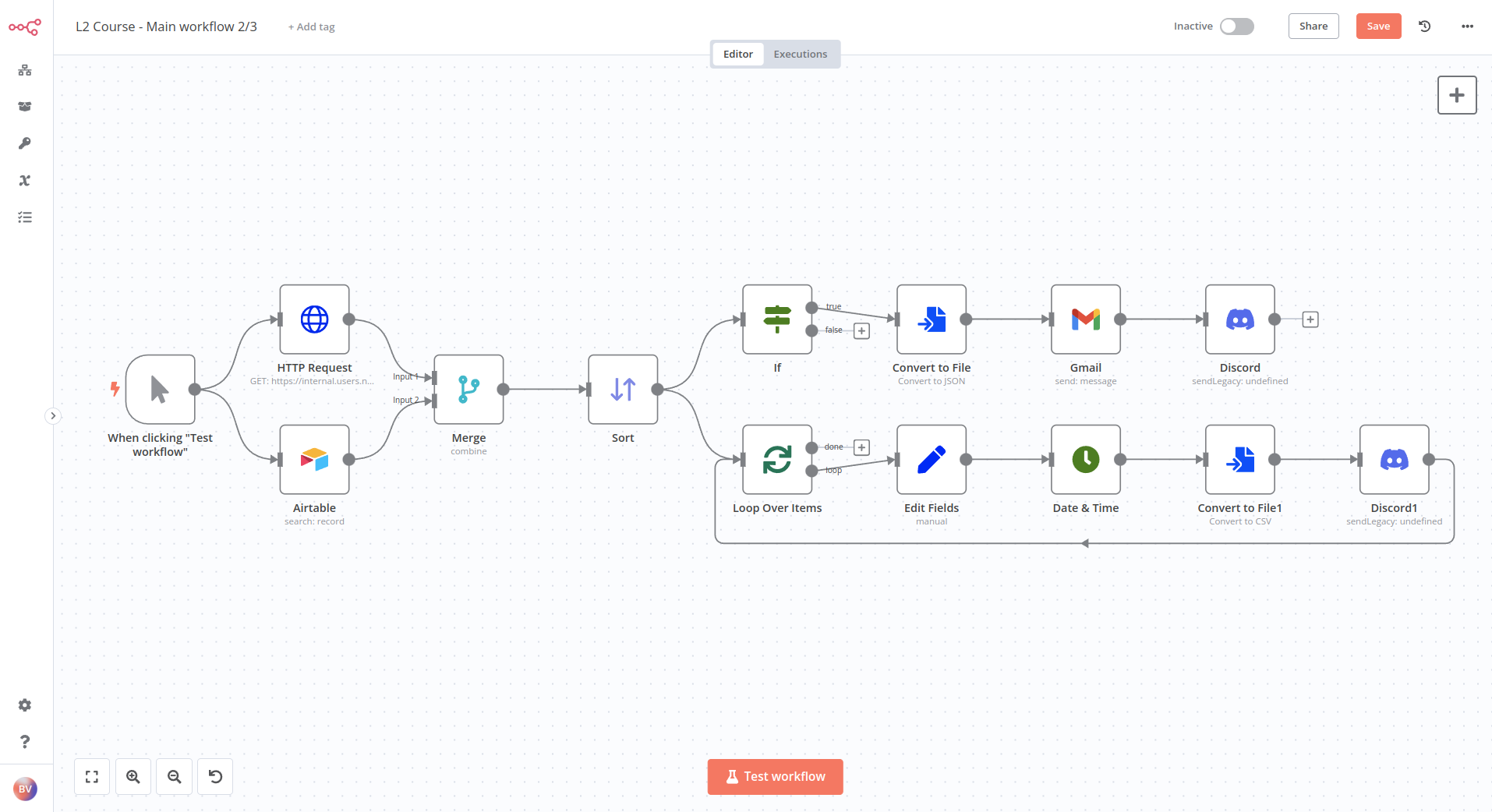
为了简化操作,我们将工作流分为三个部分。
¥To make things easier, let's split the workflow into three parts.
第 1 部分:从不同来源获取数据#
¥Part 1: Getting data from different sources
工作流程的第一部分包含五个节点:
¥The first part of the workflow consists of five nodes:
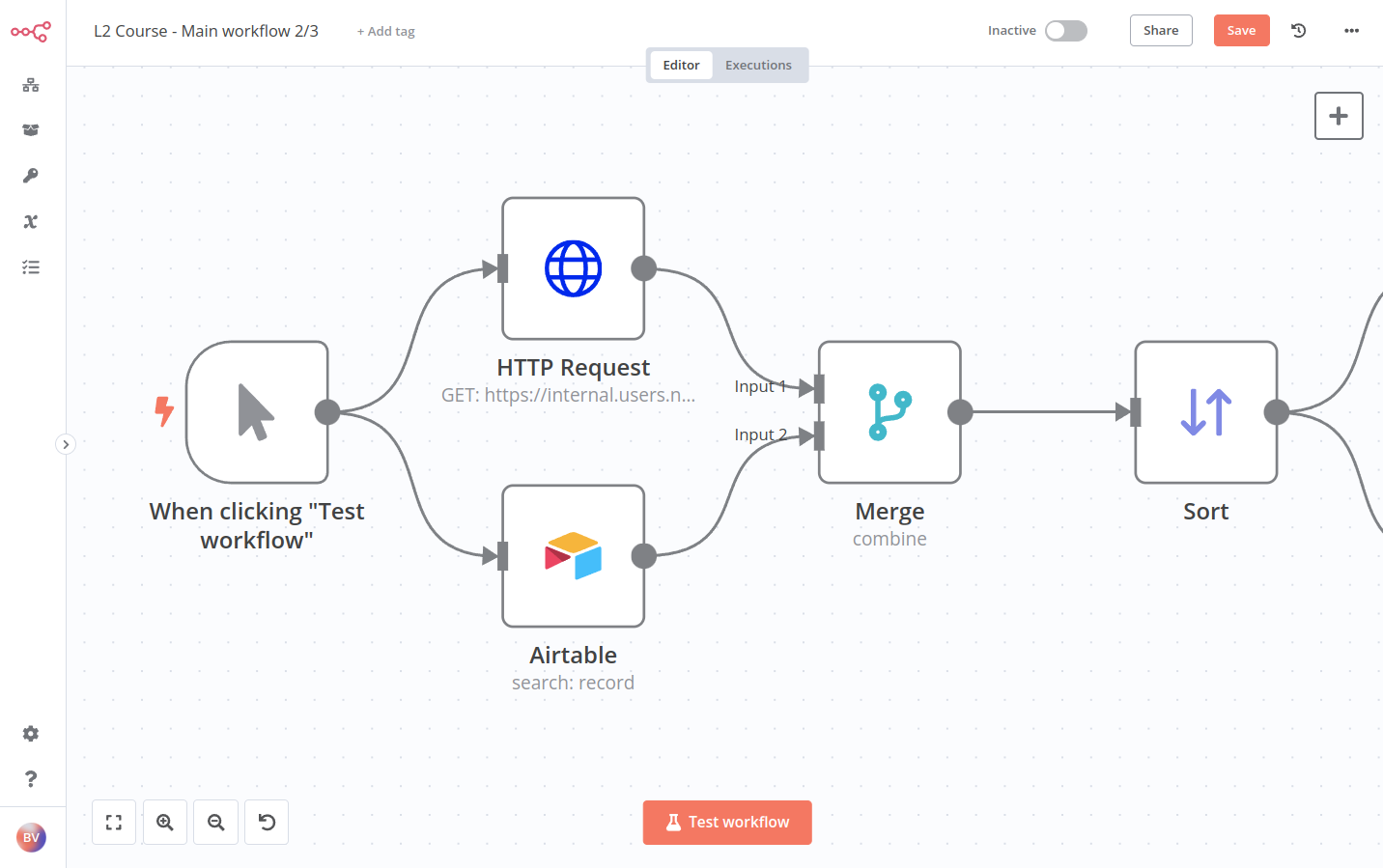
- 使用 HTTP 请求节点 节点从存储公司数据的 API 端点获取数据。配置以下节点参数:
¥Use the HTTP Request node to get data from the API endpoint that stores company data. Configure the following node parameters:
-
方法:获取
¥Method: Get
-
URL:你注册本课程时在电子邮件中收到的数据集 URL。
¥URL: The Dataset URL you received in the email when you signed up for this course.
-
身份验证:通用凭证类型
¥Authentication: Generic Credential Type
- 通用身份验证类型:标头身份验证
¥Generic Auth Type: Header Auth
- 标头身份验证凭据:你注册本课程时在电子邮件中收到的 Header Auth 名称和 Header Auth 值。
¥Credentials for Header Auth: The Header Auth name and Header Auth value you received in the email when you signed up for this course.
-
发送标头:设置为 true
¥Send Headers: Toggle to true
- 指定标题:选择“
Using Fields Below”。
¥Specify Headers: Select
Using Fields Below- 名称:
unique_id
¥Name:
unique_id- 值:你注册此课程时在电子邮件中收到的唯一 ID。
¥Value: The unique ID you received in the email when you signed up for this course.
- 指定标题:选择“
- 使用 Airtable 节点 列出
customers表中的数据(你已更新了region和subregion字段)。
¥Use the Airtable node to list data from the customers table (where you updated the fields region and subregion).
- 使用 合并节点 根据
customerID的输入字段匹配情况,合并来自 Airtable 和 HTTP 请求节点的数据。
¥Use the Merge node to merge data from the Airtable and HTTP Request node, based on matching the input fields for customerID.
- 使用 Sort 节点 按
orderPrice值降序排列数据。
¥Use the Sort node to sort data by orderPrice in descending order.
Quiz questions
- 分配给客户 1 的员工名称是什么?
¥What's the name of the employee assigned to customer 1?
- 客户 2 的订单状态是什么?
¥What's the order status of customer 2?
- 最高订单价格是多少?
¥What's the highest order price?
第 2 部分:生成区域销售文件#
¥Part 2: Generating file for regional sales
工作流的第二部分包含四个节点:
¥The second part of the workflow consists of four nodes:
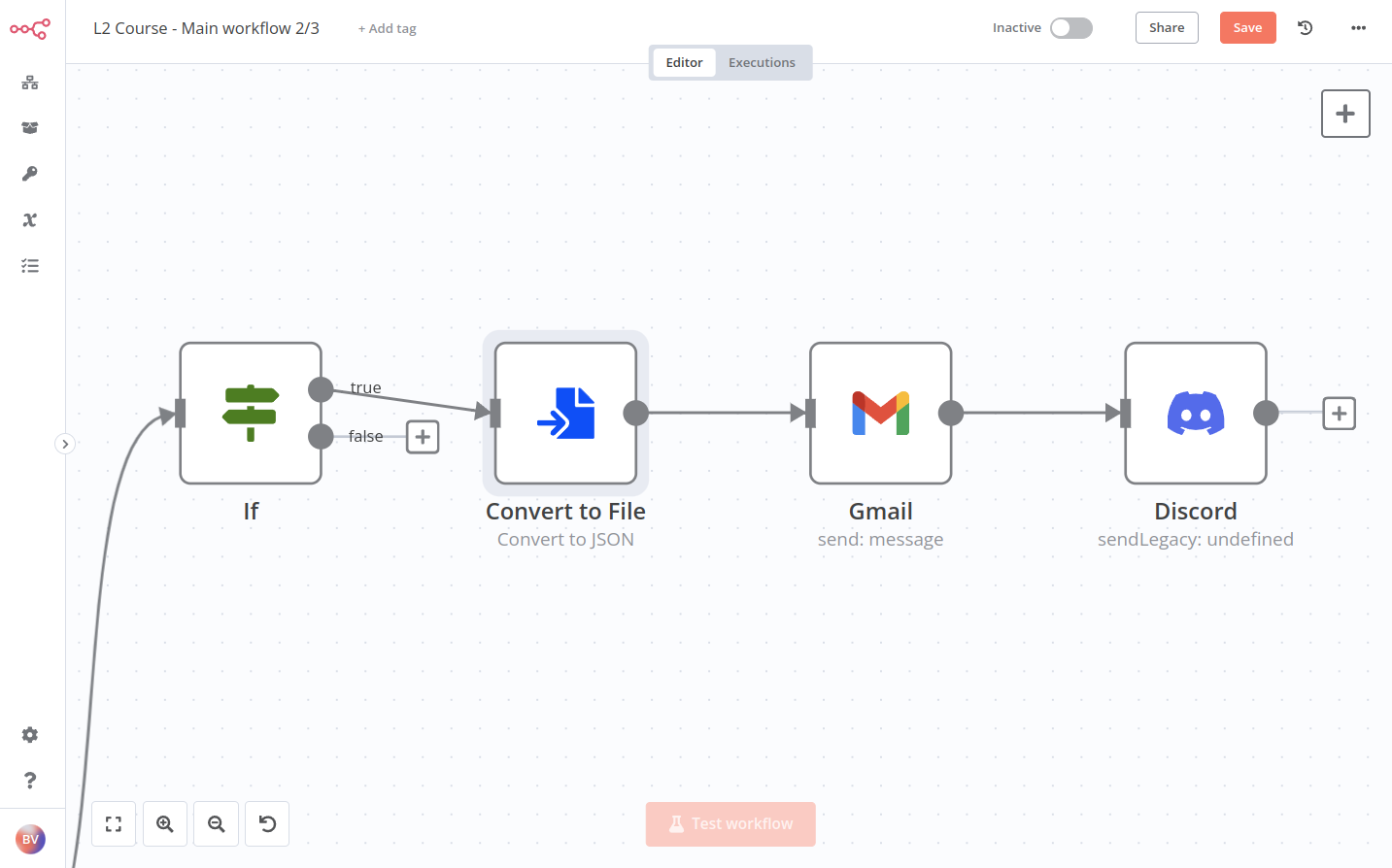
- 使用 如果节点 节点筛选,仅显示来自区域
Americas的订单。
¥Use the If node to filter to only display orders from the region Americas.
2. 使用 转换为文件 将传入的 JSON 数据转换为二进制格式。将每个项目转换为单独的文件(如果你能根据订单 ID 为每个报告命名,将获得额外加分!)
¥Use the Convert to File to transform the incoming data from JSON to binary format. Convert each item to a separate file. (Bonus points if you can figure out how to name each report based on the orderID!) 3. 使用 Gmail 节点(或其他邮件节点)将文件通过电子邮件发送到你有权访问的地址。请注意,你需要添加一个带有 data 属性的附件。
¥Use the Gmail node (or another email node) to send the files using email to an address you have access to. Note that you need to add an attachment with the data property.
4. 使用 Discord 节点 在 n8n Discord 通道 #course-level-two 中发送消息。在节点中,配置以下参数:
¥Use the Discord node to send a message in the n8n Discord channel #course-level-two. In the node, configure the following parameters:
-
Webhook URL:你注册此课程时从 n8n 收到的电子邮件中的 Discord URL。
¥Webhook URL: The Discord URL you received in the email when you signed up for this course.
-
文本:" 我已通过电子邮件发送了带有 ID
{label ID}标签的文件。我的 ID:" 后面跟着你注册此课程时通过电子邮件发送给你的唯一 ID。
请注意,你需要将大括号中的文本{}替换为引用节点数据的 expressions。¥Text: "I sent the file using email with the label ID
{label ID}. My ID: " followed by the unique ID emailed to you when you registered for this course.
Note that you need to replace the text in curly braces{}with expressions that reference the data from the nodes.
Quiz questions
- 有多少个订单被分配到
Americas区域?
¥How many orders are assigned to the Americas region?
Americas地区的订单总价是多少?
¥What's the total price of the orders in the Americas region?
- “写入二进制文件”节点返回多少个项目?
¥How many items does the Write Binary File node return?
第 3 部分:生成总销售额文件#
¥Part 3: Generating files for total sales
工作流的第三部分包含五个节点:
¥The third part of the workflow consists of five nodes:
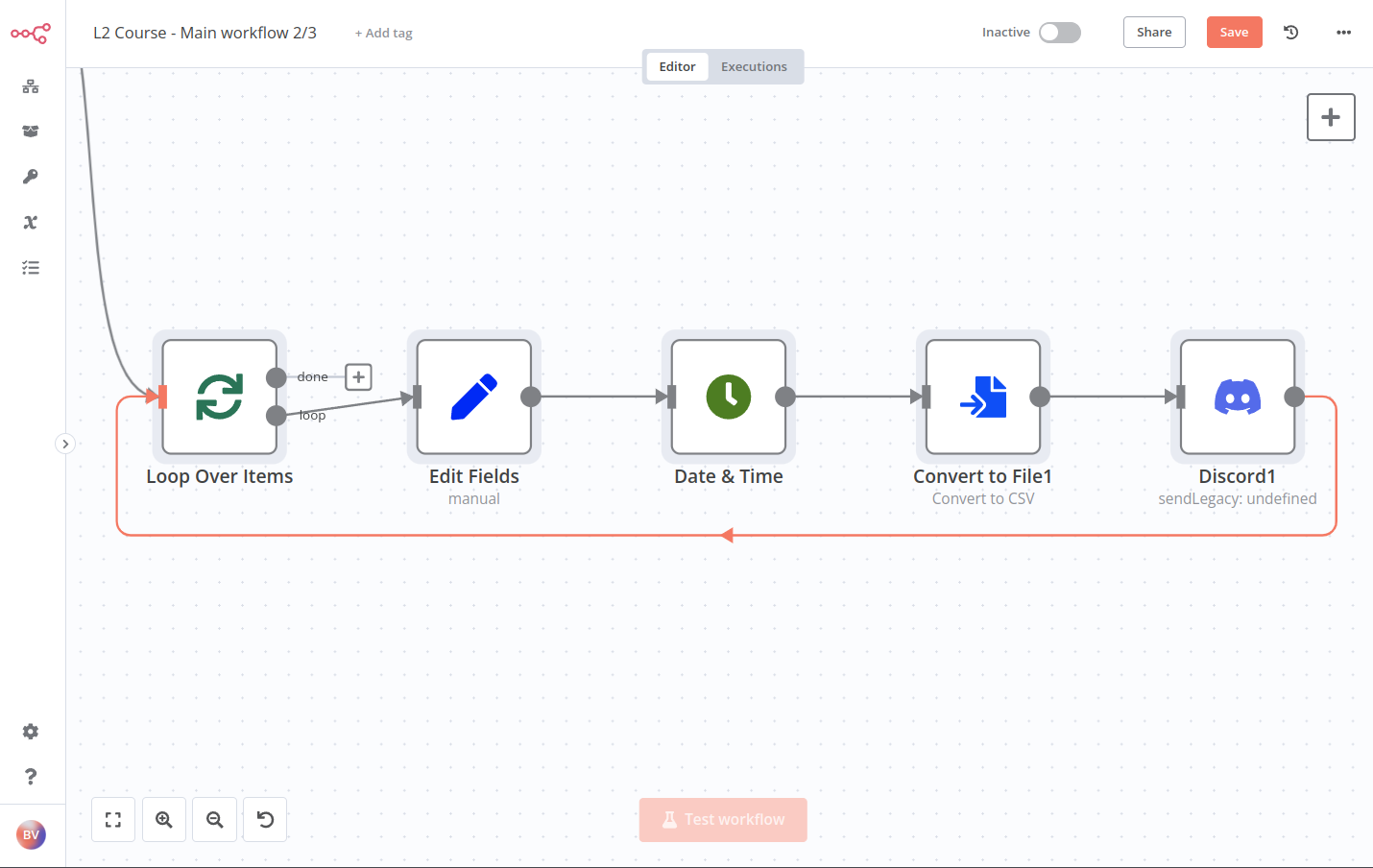
- 使用 循环遍历项目节点 将“项目列表”节点中的数据拆分成 5 个一组。
¥Use the Loop Over Items node to split data from the Item Lists node into batches of 5.
2. 使用 设置节点 设置四个值,这些值由上一个节点的表达式引用:customerEmail、customerRegion、customerSince 和 orderPrice。
¥Use the Set node to set four values, referenced with expressions from the previous node: customerEmail, customerRegion, customerSince, and orderPrice.
3. 使用 日期和时间节点 节点将字段 customerSince 的日期格式更改为 MM/DD/YYYY 格式。
¥Use the Date & Time node to change the date format of the field customerSince to the format MM/DD/YYYY.
-
将“包含输入字段”选项设置为将所有数据放在一起。
¥Set the Include Input Fields option to keep all the data together. 4. 使用 转换为文件节点 节点创建一个 CSV 电子表格,并将文件名设置为表达式。
{{$runIndex > 0 ? 'file_low_orders':'file_high_orders'}}。
¥Use the Convert to File node to create a CSV spreadsheet with the file name set as the expression: {{$runIndex > 0 ? 'file_low_orders':'file_high_orders'}}.
5. 使用 Discord 节点 在 n8n Discord 通道 #course-level-two 中发送消息。在节点中,配置以下参数:
¥Use the Discord node to send a message in the n8n Discord channel #course-level-two. In the node, configure the following parameters:
-
Webhook URL:你注册此课程时从 n8n 收到的电子邮件中的 Discord URL。
¥Webhook URL: The Discord URL you received in the email when you signed up for this course.
-
文本:" 我创建了电子表格
{file name}。我的 ID:",后跟你注册本课程时通过电子邮件发送给你的唯一 ID。
请注意,你需要将{file name}替换为引用上一个“转换为文件”节点数据的表达式。¥Text: "I created the spreadsheet
{file name}. My ID:" followed by the unique ID emailed to you when you registered for this course.
Note that you need to replace{file name}with an expression that references data from the previous Convert to File node.
Quiz questions
- 第一批商品中的最低订单价格是多少?
¥What's the lowest order price in the first batch of items?
- 客户 7 的格式化日期是什么?
¥What's the formatted date of customer 7?
- “转换为文件”节点返回多少项?
¥How many items does the Convert to File node return?
显示解决方案
¥??? note "Show me the solution"
1 2 3 4 5 6 7 8 9 10 11 12 13 14 15 16 17 18 19 20 21 22 23 24 25 26 27 28 29 30 31 32 33 34 35 36 37 38 39 40 41 42 43 44 45 46 47 48 49 50 51 52 53 54 55 56 57 58 59 60 61 62 63 64 65 66 67 68 69 70 71 72 73 74 75 76 77 78 79 80 81 82 83 84 85 86 87 88 89 90 91 92 93 94 95 96 97 98 99 100 101 102 103 104 105 106 107 108 109 110 111 112 113 114 115 116 117 118 119 120 121 122 123 124 125 126 127 128 129 130 131 132 133 134 135 136 137 138 139 140 141 142 143 144 145 146 147 148 149 150 151 152 153 154 155 156 157 158 159 160 161 162 163 164 165 166 167 168 169 170 171 172 173 174 175 176 177 178 179 180 181 182 183 184 185 186 187 188 189 190 191 192 193 194 195 196 197 198 199 200 201 202 203 204 205 206 207 208 209 210 211 212 213 214 215 216 217 218 219 220 221 222 223 224 225 226 227 228 229 230 231 232 233 234 235 236 237 238 239 240 241 242 243 244 245 246 247 248 249 250 251 252 253 254 255 256 257 258 259 260 261 262 263 264 265 266 267 268 269 270 271 272 273 274 275 276 277 278 279 280 281 282 283 284 285 286 287 288 289 290 291 292 293 294 295 296 297 298 299 300 301 302 303 304 305 306 307 308 309 310 311 312 313 314 315 316 317 318 319 320 321 322 323 324 325 326 327 328 329 330 331 332 333 334 335 336 337 338 339 340 341 342 343 344 345 346 347 348 349 350 351 352 353 354 355 356 357 358 359 360 361 362 363 364 365 366 367 368 369 370 371 372 373 374 375 376 377 378 379 380 381 382 383 384 385 386 387 388 389 390 391 392 393 394 395 396 397 398 399 400 401 402 403 404 405 406 407 408 409 410 411 412 413 414 415 416 417 418 419 420 421 422 423 424 425 426 427 428 429 430 431 432 433 434 435 436 437 438 439 440 441 442 443 444 445 446 447 448 449 450 451 452 453 454 455 456 457 458 459 460 461 462 463 464 465 466 467 468 469 470 471 472 473 474 475 476 477 478 479 480 481 482 483 484 485 486 487 488 489 490 491 492 493 494 495 496 | |