导出和导入工作流#
本章将介绍如何导出和导入工作流。
🌐 In this chapter, you will learn how to export and import workflows.
导出和导入工作流(Exporting and importing workflows)#
你可以将 n8n 工作流以 JSON 文件的形式保存在本地。如果你想与他人共享你的工作流或从他人那里导入工作流,这会很有用。
🌐 You can save n8n workflows locally as JSON files. This is useful if you want to share your workflow with someone else or import a workflow from someone else.
Sharing credentials
Exported workflow JSON files include credential names and IDs. While IDs aren't sensitive, the names could be, depending on how you name your credentials. HTTP Request nodes may contain authentication headers when imported from cURL. Remove or anonymize this information from the JSON file before sharing to protect your credentials.
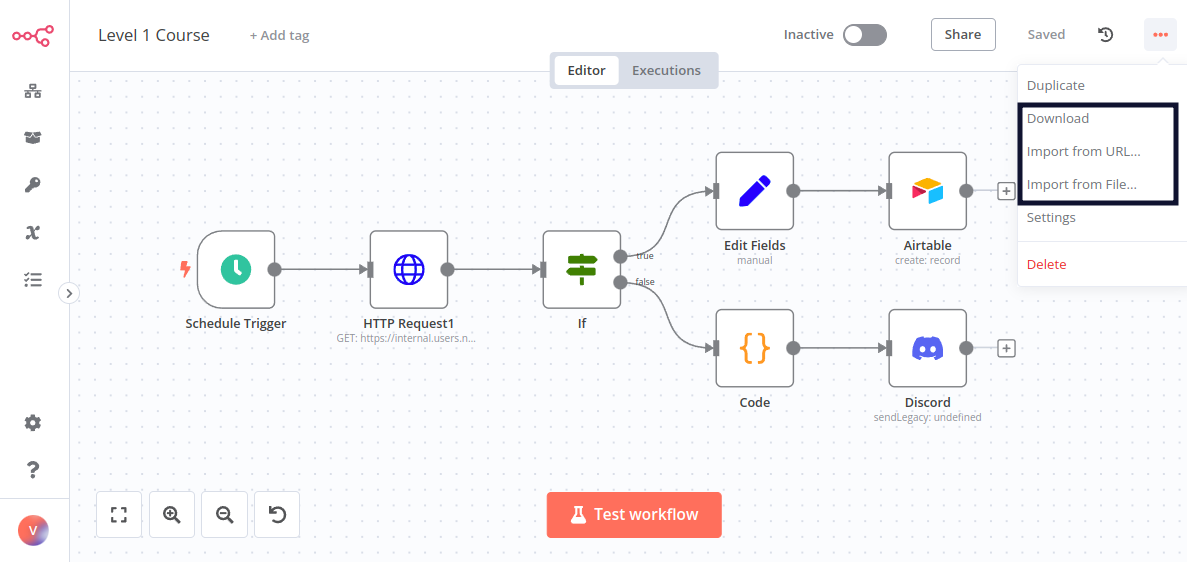
你可以通过三种方式导出和导入工作流:
🌐 You can export and import workflows in three ways:
- 从 编辑器界面 菜单:
- 导出:在顶部导航栏中,点击右上角的三个点,然后选择 下载。这将把你当前的工作流程下载为计算机上的 JSON 文件。
- 导入:在顶部导航栏中,点击右上角的三个点,然后选择从 URL 导入(以导入已发布的工作流)或从文件导入(以 JSON 文件的形式导入工作流)。
- 来自 编辑器 UI 画布:
- 导出:在画布上选择所有节点,然后使用 ++Ctrl+C++ 复制工作流 JSON。你可以将其粘贴到文件中,或直接与其他人共享。
- 导入:你可以直接在画布上粘贴复制的工作流 JSON,使用 Ctrl+V。
- 从命令行获取: