保存和发布工作流程(Saving and publishing workflows)#
n8n 会在你编辑工作流时自动保存。当你准备将工作流投入生产时,请发布你的工作流。这种方法可以防止意外的生产更改,同时允许安全的迭代和审查。
🌐 n8n auto saves your workflow while you're editing. When you're ready to put the workflow into production, publish your workflow. This approach prevents accidental production changes while enabling safe iteration and review.
储蓄的运作方式(How saving works)#
更改会在编辑时自动保存,通常在 1 到 5 秒内完成。不需要手动保存按钮。所有编辑内容在发布之前都会保持为草稿状态。
🌐 Changes save automatically as you edit, typically within 1 to 5 seconds. No manual save button is required. All edits remain in draft until you publish.
发布是如何运作的(How publishing works)#
发布会使你的工作流程生效并将其锁定到特定版本。生产环境的执行将使用此已发布的版本,而不是你最新的编辑。当你发布时,你的工作流程将启用以下功能:
🌐 Publishing makes your workflow live and locks it to a specific version. Production executions will use this published version, not your latest edits. When you publish, your workflow will enable the following:
- Webhook 和表单触发器将使用它们的生产 URL
- 计划将按你设定的时间运行
- 来自已连接应用的事件将触发此工作流
初始状态 当你打开一个没有可发布更改的工作流时,发布按钮将被禁用。

准备发布 当工作流尚未发布但有更改时,按钮会变为可用状态。

已发布,最新 工作流当前已发布,自上次发布以来没有新的更改。

已发布,有更改 工作流已发布,但自上次发布以来你所做的更改尚未生效。

已发布,无效更改 工作流已发布,但目前无法重新发布(没有触发器需要发布)。

已发布,错误 工作流已发布,但你最近的更改中存在需要修复的错误,你必须先修复这些错误才能再次发布。

协作的工作原理(How collaboration works)#
同一时间只能有一个人编辑工作流程。如果有人正在编辑:
🌐 Only one person can edit a workflow at a time. If someone else is currently editing:
- 你以只读模式查看工作流程
- 当他们停止编辑或变得不活跃时,编辑锁会释放
- 然后你可以接手编辑最新的更改
正在检查发布状态(Checking publishing status)#
在 工作流 页面上,如果工作流已发布,卡片上将显示一个指示器。
🌐 On the Workflows page, if a workflow is published an indicator will be displayed on the card.

发布工作流程(Publishing a workflow)#
画布标题中的发布按钮在有未发布更改时会被启用。
🌐 The Publish button in the canvas header is enabled whenever there are unpublished changes.
每次你对工作流进行更改时,n8n 会自动将这些更改保存为工作流的新版本。只有在你在更改后发布工作流时,这些保存的版本才会在生产环境中生效。
🌐 Each time you make a change to a workflow, n8n autosaves those changes to a new version of the workflow. These saved versions go live in production only when you publish the workflow after the changes.
- 点击 发布 按钮(或使用快捷键
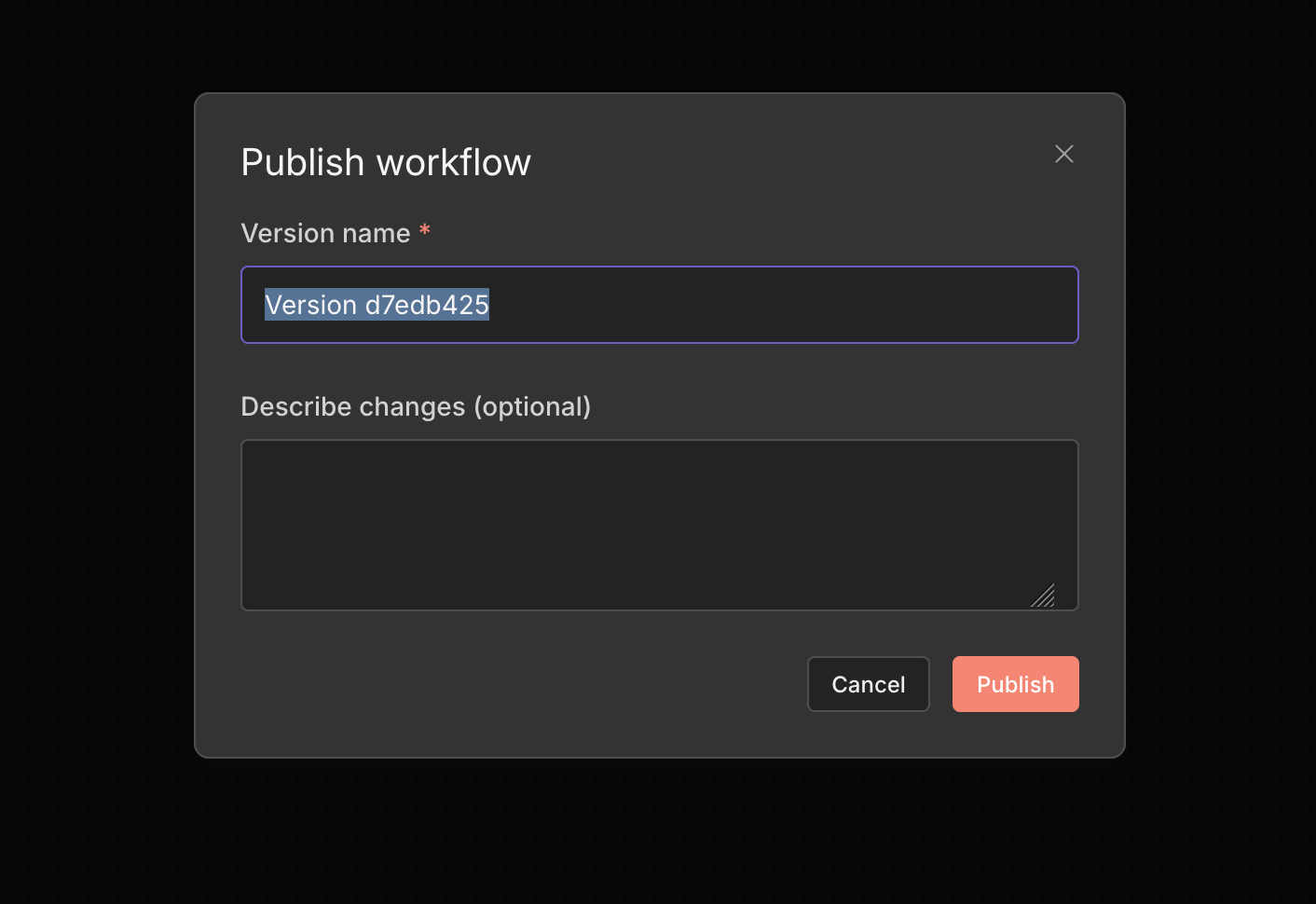
Shift+p)以打开发布弹窗 - 版本名称默认为 UUID。如果愿意,你可以自定义名称并添加版本描述。
- 点击 发布 以将你的更改应用到生产环境。生产环境的执行总是指向当前已发布的版本。
如果你只更新工作流设置,n8n 将重新发布版本,无需你采取任何操作。
命名版本(Naming versions)#
功能可用性
命名版本适用于专业版和企业云计划,以及企业自托管计划。
命名版本允许你为任何工作流版本提供有意义的名称和描述。这有助于你识别工作流开发中的重要里程碑。命名版本还受到自动版本历史修剪的保护,因此它们会永久保留。
🌐 Named versions let you give a meaningful name and description to any workflow version. This helps you identify important milestones in your workflow's development. Named versions are also protected from automatic version history pruning, so they persist indefinitely.
要从画布标题命名一个版本:
🌐 To name a version from the canvas header:
- 选择 发布 按钮旁的下拉箭头(或使用快捷键
Cmd/Ctrl+s)。 - 选择 名称版本。
- 输入名称和可选描述。
- 选择 保存。

从版本历史页面为某个版本命名:
🌐 To name a version from the version history page:
- 通过在标题栏中选择历史记录图标来打开版本历史。
- 在你想要命名的版本上,选择 选项
 。
。 - 选择 名称版本。
- 输入名称和可选描述。
- 选择 保存。
管理版本历史(Managing version history)#
通过点击标题中的历史记录图标查看和管理版本历史。在版本历史视图中,你可以执行以下操作:
🌐 View and manage version history by clicking the history icon in the header. In the version history view, you can perform these actions:
- 取消发布工作流以将其从生产环境中移除
- 恢复到先前的版本。恢复操作可以让你在不影响生产执行的情况下处理某个版本。
- 发布工作流程的另一个版本
- 为它命名一个版本以防止被修剪
如何取消发布工作流(How to unpublish a workflow)#
从以下位置取消发布工作流:
🌐 Unpublish a workflow from either:
- 画布标题中的 发布 按钮旁的下拉箭头(或使用快捷键
Cmd/Ctrl+u)。 - 在工作流列表中
- 版本历史页面(已发布版本的取消发布操作)