合并#
¥Merge
使用“合并”节点,在所有数据流都可用后,合并来自多个数据流的数据。
¥Use the Merge node to combine data from multiple streams, once data of all streams is available.
Major changes in 0.194.0
n8n 团队在 n8n 0.194.0 版本中对该节点进行了全面改进。本文档反映了节点的最新版本。如果你使用的是旧版本的 n8n,可以在 此处 中找到此文档的先前版本。
¥The n8n team overhauled this node in n8n 0.194.0. This document reflects the latest version of the node. If you're using an older version of n8n, you can find the previous version of this document here.
Minor changes in 1.49.0
n8n 版本 1.49.0 引入了添加两个以上输入的选项。旧版本最多仅支持两个输入框。如果你运行的是旧版本,并且想要合并这些版本中的多个输入,请使用 代码节点。
¥n8n version 1.49.0 introduced the option to add more than two inputs. Older versions only support up to two inputs. If you're running an older version and want to combine multiple inputs in these versions, use the Code node.
Mode > SQL 查询功能也已在 n8n 版本 1.49.0 中添加,旧版本中不可用。
¥The Mode > SQL Query feature was also added in n8n version 1.49.0 and isn't available in older versions.
节点参数#
¥Node parameters
你可以通过选择“模式”来指定合并节点如何合并来自不同数据流的数据:
¥You can specify how the Merge node should combine data from different data streams by choosing a Mode:
追加#
¥Append
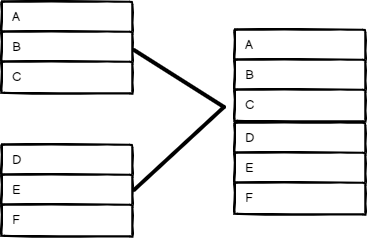
保留所有输入的数据。选择输入数量,以便按顺序输出每个输入项。此节点会等待所有已连接输入的执行完毕。
¥Keep data from all inputs. Choose a Number of Inputs to output items of each input, one after another. The node waits for the execution of all connected inputs.
合并#
¥Combine
合并来自两个输入的数据。在“合并依据”中选择一个选项,以确定如何合并输入数据。
¥Combine data from two inputs. Select an option in Combine By to determine how you want to merge the input data.
匹配字段#
¥Matching Fields
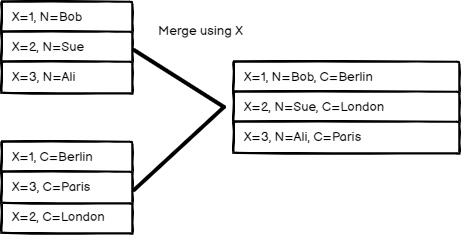
按字段值比较项目。在“要匹配的字段”中,输入要比较的字段。
¥Compare items by field values. Enter the fields you want to compare in Fields to Match.
n8n 的默认行为是保留匹配项。你可以使用“输出类型”设置来更改此设置:
¥n8n's default behavior is to keep matching items. You can change this using the Output Type setting:
- 保留匹配项:合并匹配项。这类似于内连接。
¥Keep Matches: Merge items that match. This is like an inner join.
- 保留不匹配项:合并不匹配的项。
¥Keep Non-Matches: Merge items that don't match.
- 保留所有内容:合并匹配的项,并包含不匹配的项。这类似于外连接。
¥Keep Everything: Merge items together that do match and include items that don't match. This is like an outer join.
- 丰富输入 1:保留输入 1 中的所有数据,并添加来自输入 2 的匹配数据。这类似于左连接。
¥Enrich Input 1: Keep all data from Input 1, and add matching data from Input 2. This is like a left join.
- 丰富输入 2:保留输入 2 中的所有数据,并添加来自输入 1 的匹配数据。这类似于右连接。
¥Enrich Input 2: Keep all data from Input 2, and add matching data from Input 1. This is like a right join.
位置#
¥Position
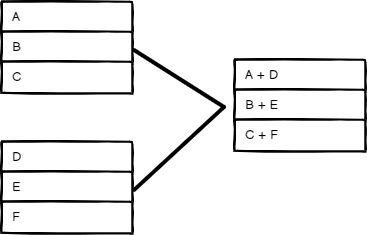
根据顺序合并项目。输入 1 中索引为 0 的项与输入 2 中索引为 0 的项合并,依此类推。
¥Combine items based on their order. The item at index 0 in Input 1 merges with the item at index 0 in Input 2, and so on.
所有可能的组合#
¥All Possible Combinations
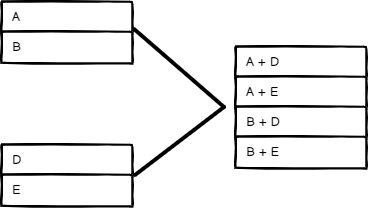
输出所有可能的项目组合,同时合并名称相同的字段。
¥Output all possible item combinations, while merging fields with the same name.
合并模式选项#
¥Combine mode options
通过“模式”>“合并”合并数据时,你可以设置以下选项:
¥When merging data by Mode > Combine, you can set these Options:
- 冲突处理:选择数据流冲突或存在子字段时如何合并数据。有关详细信息,请联系 冲突处理。
¥Clash Handling: Choose how to merge when data streams clash, or when there are sub-fields. Refer to Clash handling for details.
- 模糊比较:比较字段时是否容忍类型差异(启用)或不支持(禁用,默认)。例如,启用此功能后,n8n 会将
"3"和3视为相同。
¥Fuzzy Compare: Whether to tolerate type differences when comparing fields (enabled), or not (disabled, default). For example, when you enable this, n8n treats "3" and 3 as the same.
- 禁用点号表示法:此设置可防止访问字段名称中包含
parent.child的子字段。
¥Disable Dot Notation: This prevents accessing child fields using parent.child in the field name.
- 多项匹配选择 n8n 在比较数据流时如何处理多个匹配项。
¥Multiple Matches: Choose how n8n handles multiple matches when comparing data streams.
-
包含所有匹配项:如果存在多个匹配项,则输出多个条目,每个匹配项对应一个条目。
¥Include All Matches: Output multiple items if there are multiple matches, one for each match.
-
仅包含第一个匹配项:保留每个匹配项的第一个条目,并丢弃其余的重复匹配项。
¥Include First Match Only: Keep the first item per match and discard the remaining multiple matches.
-
包含任何未配对项:选择在按位置合并时是否保留或丢弃不成对的项。默认行为是忽略不匹配的项。
¥Include Any Unpaired Items: Choose whether to keep or discard unpaired items when merging by position. The default behavior is to leave out the items without a match.
冲突处理#
¥Clash Handling
If multiple items at an index have a field with the same name, this is a clash. For example, if all items in both Input 1 and Input 2 have a field named language, these fields clash. By default, n8n prioritizes Input 2, meaning if language has a value in Input 2, n8n uses that value when merging the items.
You can change this behavior by selecting Options > Clash Handling:
- When Field Values Clash: Choose which input to prioritize, or choose Always Add Input Number to Field Names to keep all fields and values, with the input number appended to the field name to show which input it came from.
- Merging Nested Fields
- Deep Merge: Merge properties at all levels of the items, including nested objects. This is useful when dealing with complex, nested data structures where you need to ensure the merging of all levels of nested properties.
- Shallow Merge: Merge properties at the top level of the items only, without merging nested objects. This is useful when you have flat data structures or when you only need to merge top-level properties without worrying about nested properties.
SQL 查询#
¥SQL Query
编写自定义 SQL 查询来合并数据。
¥Write a custom SQL Query to merge the data.
示例:
¥Example:
1 | |
来自先前节点的数据以表格形式提供,你可以根据顺序在 SQL 查询中将其用作 input1、input2、input3 等。请参阅 AlaSQL GitHub 页面 获取受支持的 SQL 语句的完整列表。
¥Data from previous nodes are available as tables and you can use them in the SQL query as input1, input2, input3, and so on, based on their order. Refer to AlaSQL GitHub page for a full list of supported SQL statements.
选择分支#
¥Choose Branch
选择要保留的输入。此选项始终等待,直到两个输入的数据都可用为止。你可以选择输出:
¥Choose which input to keep. This option always waits until the data from both inputs is available. You can choose to Output:
- 输入 1 数据
¥The Input 1 Data
- 输入 2 数据
¥The Input 2 Data
- 单个空令牌项目
¥A Single, Empty Item
该节点输出所选输入的数据,而不对其进行任何更改。
¥The node outputs the data from the chosen input, without changing it.
模板和示例#
¥Templates and examples
合并包含不均匀项数的数据流#
¥Merging data streams with uneven numbers of items
合并节点的输入 1 中传递的项将优先。例如,如果“合并”节点在“输入 1”中接收到 5 个项目,在“输入 2”中接收到 10 个项目,则它只会处理其中的 5 个项目。输入 2 中的其余五个项目将不会被处理。
¥The items passed into Input 1 of the Merge node will take precedence. For example, if the Merge node receives five items in Input 1 and 10 items in Input 2, it only processes five items. The remaining five items from Input 2 aren't processed.
使用 If 和 Merge 节点执行分支#
¥Branch execution with If and Merge nodes
0.236.0 and below
n8n removed this execution behavior in version 1.0. This section applies to workflows using the v0 (legacy) workflow execution order. By default, this is all workflows built before version 1.0. You can change the execution order in your workflow settings.
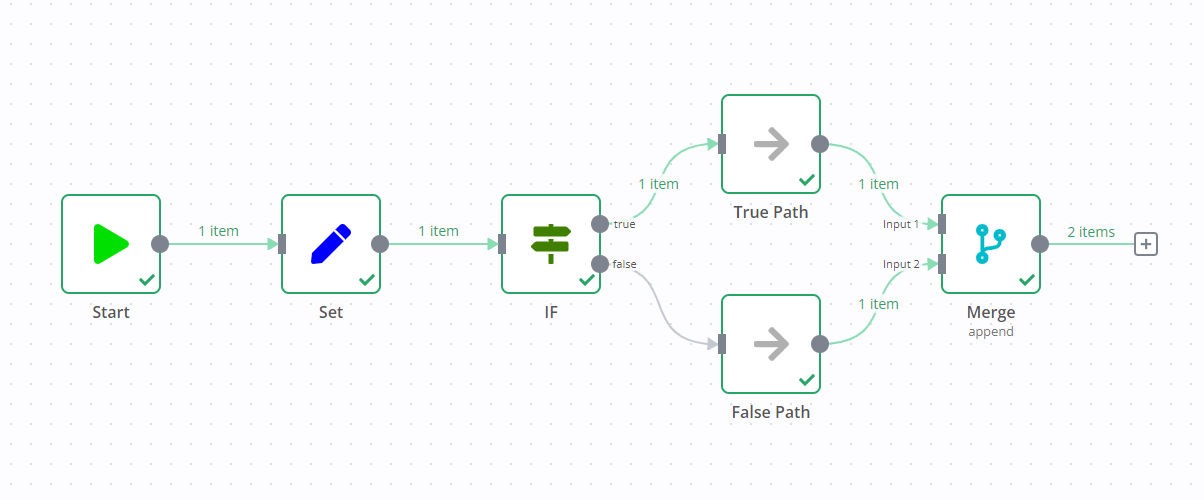
If you add a Merge node to a workflow containing an If node, it can result in both output data streams of the If node executing.
One data stream triggers the Merge node, which then goes and executes the other data stream.
For example, in the screenshot below there's a workflow containing an Edit Fields node, If node, and Merge node. The standard If node behavior is to execute one data stream (in the screenshot, this is the true output). However, due to the Merge node, both data streams execute, despite the If node not sending any data down the false data stream.
尝试一下:分步示例#
¥Try it out: A step by step example
创建一个包含示例输入数据的工作流,以测试“合并”节点。
¥Create a workflow with some example input data to try out the Merge node.
使用代码节点设置示例数据#
¥Set up sample data using the Code nodes
- 在画布上添加一个代码节点,并将其连接到开始节点。
¥Add a Code node to the canvas and connect it to the Start node. 2. 将以下 JavaScript 代码片段粘贴到“JavaScript 代码”字段中:
¥Paste the following JavaScript code snippet in the JavaScript Code field:
1 2 3 4 5 6 7 8 9 10 11 12 13 14 15 16 17 18 19 20 | |
- 添加第二个代码节点,并将其连接到开始节点。
¥Add a second Code node, and connect it to the Start node. 4. 将以下 JavaScript 代码片段粘贴到“JavaScript 代码”字段中:
¥Paste the following JavaScript code snippet in the JavaScript Code field:
1 2 3 4 5 6 7 8 9 10 11 12 13 14 | |
尝试不同的合并模式#
¥Try out different merge modes
添加合并节点。将第一个代码节点连接到输入 1,将第二个代码节点连接到输入 2。运行工作流,将数据加载到合并节点。
¥Add the Merge node. Connect the first Code node to Input 1, and the second Code node to Input 2. Run the workflow to load data into the Merge node.
最终工作流程应如下所示:
¥The final workflow should look like this:
Workflow preview placeholder.
现在尝试不同的模式选项,看看它们如何影响输出数据。
¥Now try different options in Mode to see how it affects the output data.
追加#
¥Append
选择“模式”>“追加”,然后选择“执行”步骤。
¥Select Mode > Append, then select Execute step.
表格视图中的输出应如下所示:
¥Your output in table view should look like this:
| name | language | greeting |
|---|---|---|
| Stefan | de | |
| Jim | en | |
| Hans | de | |
| en | 你好 | |
| de | 你好 |
按匹配字段合并#
¥Combine by Matching Fields
你可以合并这两个数据输入,以便每个人都能收到与其语言相符的正确问候语。
¥You can merge these two data inputs so that each person gets the correct greeting for their language.
- 选择“模式”>“合并”。
¥Select Mode > Combine. 2. 选择“合并依据”>“匹配字段”。
¥Select Combine by > Matching Fields.
3. 在“输入 1”和“输入 2”字段中,均输入 language。此步骤指示 n8n 通过匹配每个数据集中 language 字段的值来合并数据。
¥In both Input 1 Field and Input 2 Field, enter language. This tells n8n to combine the data by matching the values in the language field in each data set.
4. 选择“执行步骤”。
¥Select Execute step.
表格视图中的输出应如下所示:
¥Your output in table view should look like this:
| name | language | greeting |
|---|---|---|
| Stefan | de | 你好 |
| Jim | en | 你好 |
| Hans | de | 你好 |
按位置合并#
¥Combine by Position
选择“模式”>“合并”,合并依据>“位置”,然后选择“执行步骤”。
¥Select Mode > Combine, Combine by > Position, then select Execute step.
表格视图中的输出应如下所示:
¥Your output in table view should look like this:
| name | language | greeting |
|---|---|---|
| Stefan | en | 你好 |
| Jim | de | 你好 |
保留未配对的项#
¥Keep unpaired items
如果你想保留所有项目,请选择“添加选项”>“包含任何未配对的项目”,然后启用“包含任何未配对的项目”。
¥If you want to keep all items, select Add Option > Include Any Unpaired Items, then turn on Include Any Unpaired Items.
表格视图中的输出应如下所示:
¥Your output in table view should look like this:
| name | language | greeting |
|---|---|---|
| Stefan | en | 你好 |
| Jim | de | 你好 |
| Hans | de |
按所有可能的组合合并#
¥Combine by All Possible Combinations
选择“模式”>“合并”,合并依据>“所有可能的组合”,然后选择“执行步骤”。
¥Select Mode > Combine, Combine by > All Possible Combinations, then select Execute step.
表格视图中的输出应如下所示:
¥Your output in table view should look like this:
| name | language | greeting |
|---|---|---|
| Stefan | en | 你好 |
| Stefan | de | 你好 |
| Jim | en | 你好 |
| Jim | de | 你好 |
| Hans | en | 你好 |
| Hans | de | 你好 |