便签(Sticky Notes)#
便笺允许你对工作流进行注释和评论。
🌐 Sticky Notes allow you to annotate and comment on your workflows.
n8n 强烈建议大量使用便签,尤其是在模板工作流上,以帮助其他用户理解你的工作流。
🌐 n8n recommends using Sticky Notes heavily, especially on template workflows, to help other users understand your workflow.
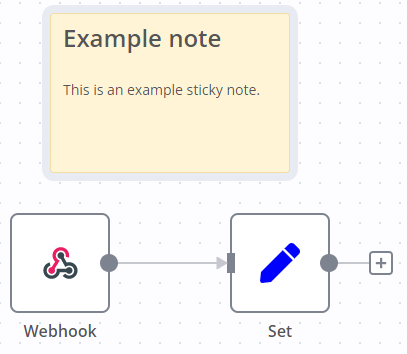
创建便笺(Create a Sticky Note)#
便签是一个核心节点。要添加新的便签:
🌐 Sticky Notes are a core node. To add a new Sticky Note:
- 打开节点面板。
- 搜索
note。 - 点击 便签 节点。n8n 会在画布上添加一个新的便签。
编辑置顶消息注意(Edit a Sticky Note)#
- 双击要编辑的便笺。
- 写下你的注意。本指南 说明了如何使用 Markdown 格式化文本。n8n 使用 markdown-it,它实现了 CommonMark 规范。
- 点击注意外的区域,或按
Esc停止编辑。
更改颜色(Change the color)#
要更改便笺颜色:
🌐 To change the Sticky Note color:
- 将鼠标悬停在便签上。
- 选择 更改颜色

便签定位(Sticky Note positioning)#
你可以:
🌐 You can:
- 将便笺拖到画布上的任意位置。
- 将便签拖到节点后面。你可以用它来直观地分组节点。
- 将鼠标悬停在便签边缘并拖动即可调整便签大小。
- 更改颜色:选择 选项
 以打开颜色选择器。
使用 Markdown 编写代码(Writing in Markdown)#
便笺支持 Markdown 格式。本节描述了一些常用选项。
🌐 Sticky Notes support Markdown formatting. This section describes some common options.
1 2 3 4 5 6 7 8 9 10 11 12 13 14 15 16 17 18 19 20 21 22 23 | |
有关更详细的指南,请参阅 CommonMark 的帮助。n8n 使用 markdown-it,它实现了 CommonMark 规范。
🌐 For a more detailed guide, refer to CommonMark's help. n8n uses markdown-it, which implements the CommonMark specification.
图片全宽显示(Make images full width)#
你可以通过在文件名后添加 #full-width 来强制图片占据便利贴的 100% 宽度:
🌐 You can force images to be 100% width of the sticky note by appending #full-width to the filename:
1 | |
嵌入 YouTube 视频(Embed a YouTube video)#
要在注意中显示 YouTube 视频,请使用带有视频 ID 的 @[youtube](<video-id>) 指令。要实现此功能,视频的创作者必须允许嵌入。
例如:
🌐 For example:
1 | |
要嵌入你自己的视频,请复制上面的语法,并将 ZCuL2e4zC_4 替换为你的视频 ID。YouTube 视频 ID 是 YouTube 链接中 v= 后面的字符串。
🌐 To embed your own video, copy the above syntax, replacing ZCuL2e4zC_4 with your video ID. The YouTube video ID is the string that follows v= in the YouTube URL.