访问 n8n MCP 服务器(Accessing n8n MCP server)#
通过 n8n 内置的 MCP 服务器,将受支持的 MCP 客户端连接到你的 n8n 工作流。
🌐 Connect supported MCP clients to your n8n workflows through n8n's built-in MCP server.
该服务器允许诸如 Lovable 或 Claude Desktop 的客户端安全地连接到 n8n 实例。一旦连接,这些客户端可以:
🌐 The server allows clients such as Lovable or Claude Desktop to connect securely to an n8n instance. Once connected, these clients can:
- 在 MCP 中标记为可用的工作流中搜索。
- 检索工作流的元数据和触发信息。
- 触发并运行已公开的工作流
实例级 MCP 访问和 MCP 服务器触发器的区别节点(Difference between instance-level MCP access and MCP Server Trigger node)#
实例级 MCP 访问权限允许你为每个 n8n 实例创建一个连接,使用集中式认证,并选择要启用访问的工作流。已启用的工作流易于查找和运行,无需为每个工作流进行额外设置。
🌐 Instance-level MCP access lets you create one connection per n8n instance, use centralized authentication, and choose which workflows to enable for access. Enabled workflows are easy to find and run without extra setup for each workflow.
相比之下,你可以在单个工作流中配置一个 MCP 服务器触发节点。该节点仅公开该工作流中的工具,当你希望在一个工作流中打造特定的 MCP 服务器行为时,这是一种非常有用的方法。
🌐 In comparison, you configure an MCP Server Trigger node inside a single workflow. This node exposes tools only from that workflow, a useful approach when you want to craft a specific MCP server behavior within one workflow.
使用实例级 MCP 访问时的关键注意事项(Key considerations when using instance-level MCP access)#
- 这不是通过 AI 客户端构建或编辑工作流程的方式;创作仍然在 n8n 中进行。
- 它不会对你实例中的所有工作流提供全面的访问。你必须在实例级别启用 MCP,然后逐个启用每个工作流。
- 它不是针对每个MCP客户端单独设置的。任何已连接的客户端都能看到你为MCP访问启用的所有工作流程。
启用 MCP 访问(Enabling MCP access)#
适用于云端和自托管实例(For Cloud and self-hosted instances)#
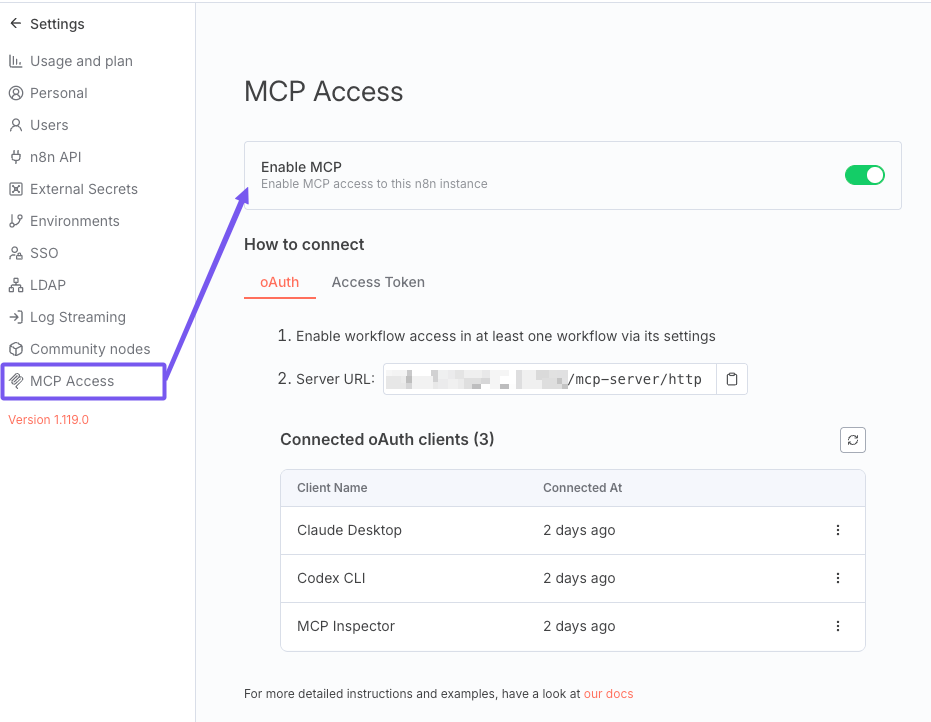
- 导航到 设置 > 实例级 MCP
- 切换 启用 MCP 访问(需要实例所有者或管理员权限)。
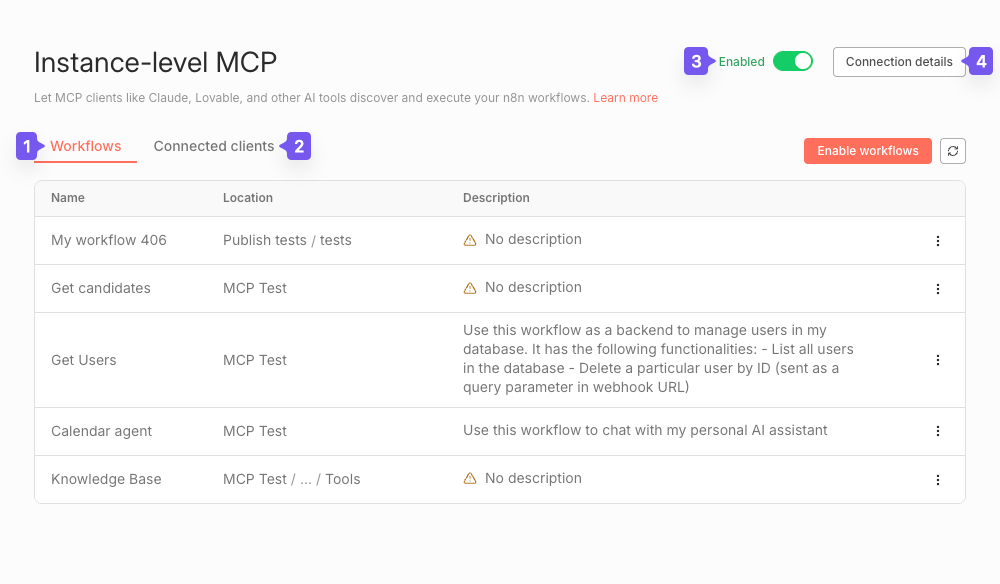
启用后,你将看到:
🌐 Once enabled, you'll see:
- 向 MCP 客户端公开的工作流列表
- 已连接的 OAuth 客户端列表
- 主要 MCP 切换以启用/禁用实例级访问
- 连接详情 按钮,显示连接 MCP 客户端的详细说明
要禁用: 将主 MCP 开关关闭。
对于自托管:完全禁用(For self-hosted: Complete disablement)#
要完全移除该功能,请设置环境变量:
🌐 To remove the feature entirely, set the environment variable:
N8N_DISABLED_MODULES=mcp
此操作会移除 MCP 端点并隐藏所有相关的 UI 元素。
🌐 This action removes MCP endpoints and hides all related UI elements.
设置 MCP 身份验证(Setting up MCP authentication)#
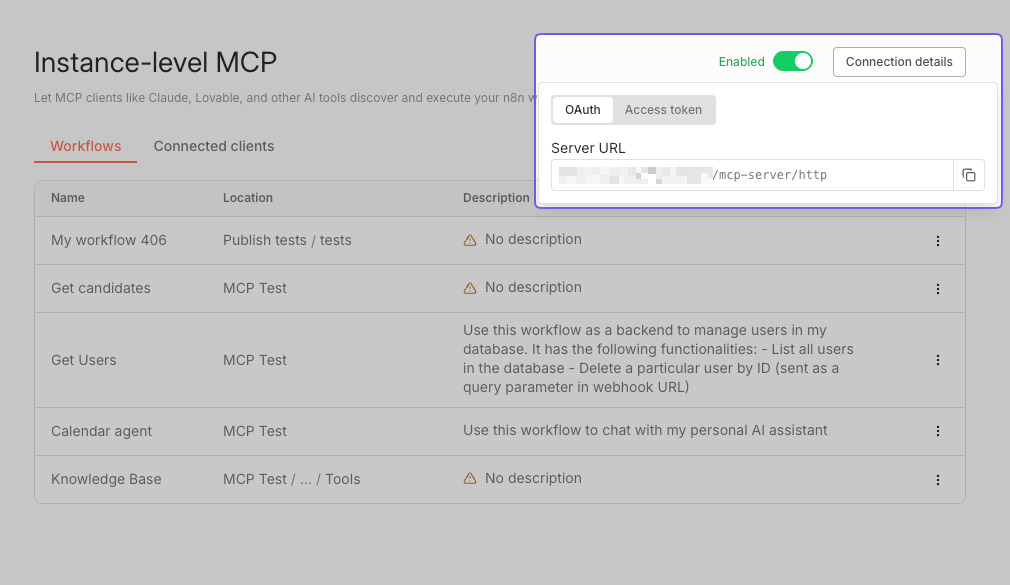
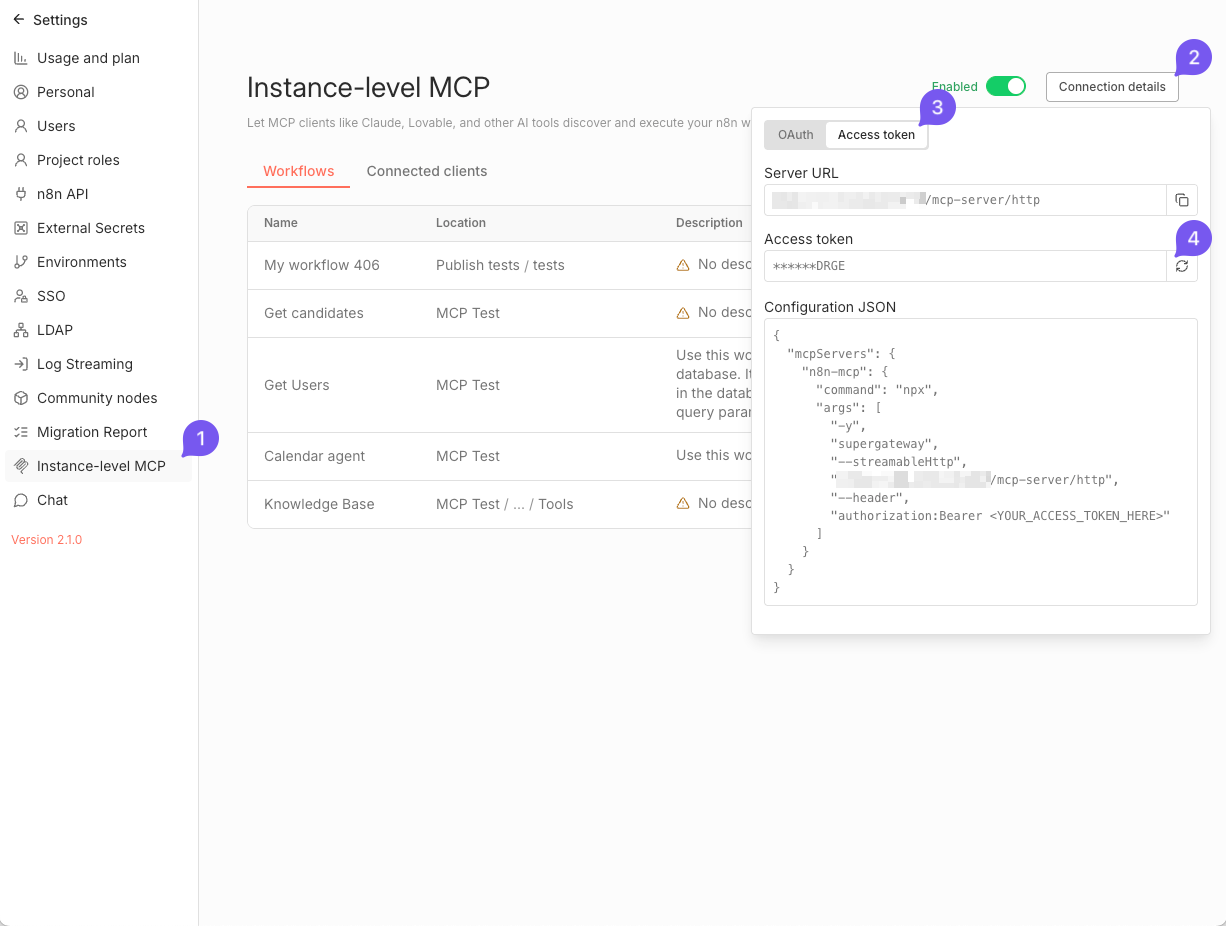
连接详细信息 弹出菜单为 MCP 客户端提供两种身份验证选项:
🌐 The Connection details popup menu provides two authentication options for MCP clients:
- OAuth2
- 访问令牌
使用 OAuth2(Using OAuth2)#
从 OAuth 标签中复制你的实例服务器 URL,并使用它来配置你的 MCP 客户端。连接后,客户端会将你重定向到 n8n 以授权访问。
🌐 Copy your instance server URL from the OAuth tab and use it to configure your MCP client. After connecting, the client will redirect you to n8n to authorize access.
撤销客户端访问权限(Revoking client access)#
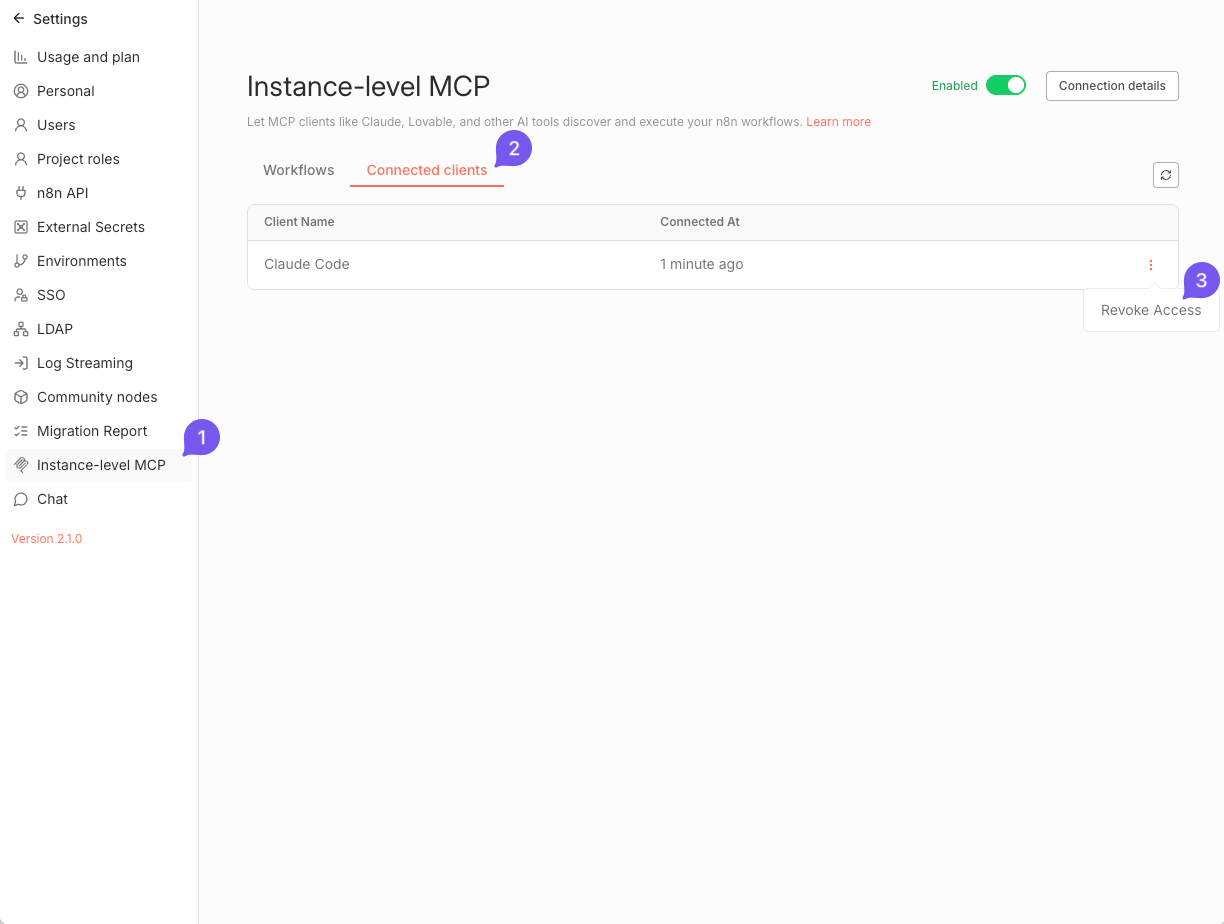
要撤销已连接的 MCP 客户端的访问权限:
🌐 To revoke access for connected MCP clients:
- 导航至 设置 > 实例级 MCP。
- 切换到 已连接的客户端 选项卡。你应该会看到一个已连接 OAuth 客户端的表格。
- 使用每个客户端行中的操作菜单可以撤销特定客户端的访问权限。
使用访问令牌(Using Access Token)#
使用你的实例服务器 URL 和来自 连接详情 菜单 访问令牌 选项卡的个人 MCP 访问令牌。
🌐 Use your instance server URL and your personal MCP Access Token from the Access Token tab on the Connection details menu.
当你第一次访问 MCP 访问页面 时,n8n 会自动生成一个与你的用户账户绑定的个人 MCP 访问令牌。
🌐 When you first visit the MCP Access page, n8n automatically generates a personal MCP Access Token tied to your user account.
/// 信息 立即复制你的令牌。在以后的访问中,你只会看到被隐藏的值,并且复制按钮将被禁用。 ///
轮换令牌(Rotating your token)#
如果你丢失令牌或需要轮换令牌:
🌐 If you lose your token or need to rotate it:
- 导航至 设置 > 实例级 MCP。
- 点击右上角的按钮打开连接详情菜单。
- 切换到 访问令牌 选项卡。
-
使用被隐藏的令牌值旁边的按钮生成新令牌。
当你生成新令牌时,n8n 会撤销之前的令牌。
-
使用新值更新所有已连接的 MCP 客户端
向 MCP 客户端公开工作流(Exposing workflows to MCP clients)#
工作流资格(Workflow eligibility)#
为了使工作流能够对 MCP 客户端可用,它必须满足以下条件:
🌐 In order for a workflow to be available to MCP clients, it must meet the following criteria:
- 发布
- 包含以下触发节点之一:
- Webhook
- 计划
- 聊天
- 表单
默认情况下,MCP 客户端无法看到任何工作流。你必须为每个希望公开的符合条件的工作流显式启用访问权限。
🌐 By default, no workflows are visible to MCP clients. You must explicitly enable access for each eligible workflow you want to expose.
在评估工作流是否符合条件时,n8n 只会考虑已发布的工作流版本。向草稿版本添加了支持的触发器的工作流,在版本发布之前不会被视为符合条件。
🌐 When evaluating workflow eligibility, n8n will take into account only the published version of the workflow. Workflows that have a supported trigger added to a draft version won't be considered eligible until the version is published.
/// 信息 一旦你取消发布工作流,n8n 会移除其 MCP 访问权限。你在再次发布工作流时需要重新启用访问权限。 ///
启用访问(Enabling access)#
选项 1:从 MCP 设置页面(从 n8n v2.2.0 起可用)(Option 1: From MCP settings page (available from n8n v2.2.0))#
- 点击 启用工作流 按钮(在工作流表头或表格为空时)
- 搜索所需的工作流(按名称或描述),并从列表中选择它
- 点击 启用 按钮以确认
选项 2:从工作流编辑器(Option 2: From the workflow editor)#
- 打开工作流。
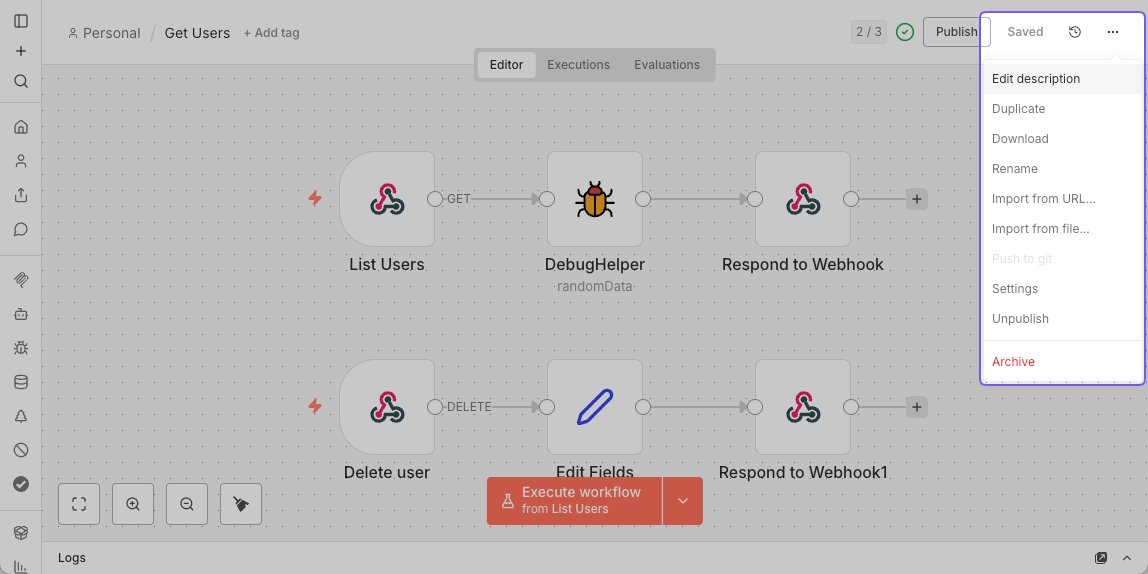
- 点击右上角的主工作流菜单(
...)。 - 选择 设置。
- 切换 在 MCP 中可用。
选项3:从工作流列表中选择(Option 3: From the workflows list)#
- 转到 工作流。
- 打开工作流卡片上的菜单。
- 选择 启用 MCP 访问。
管理访问权限(Managing access)#
实例级 MCP 设置页面显示所有可供 MCP 客户使用的工作流。你可以从此列表中:
🌐 The Instance-level MCP settings page shows all workflows available to MCP clients. From this list you can:
- 直接打开工作流、其所属项目或上级文件夹
- 使用操作菜单撤销访问权限(或在工作流卡片菜单中使用禁用MCP访问)
- 使用操作菜单更新工作流描述(或在工作流编辑器中使用菜单)
- 使用 启用工作流 按钮为更多工作流启用访问权限(从 n8n v2.2.0 起可用)
工作流描述(Workflow descriptions)#
为了帮助 MCP 客户端识别工作流,你可以按如下方式添加自由文本描述:
🌐 To help MCP clients identify workflows, you can add free-text descriptions as follows:
- 选项 1:来自 实例级 MCP 页面
- 导航至 设置 > 实例级 MCP。
- 确保你在 工作流程 标签页。
- 在所需工作流的行中使用操作菜单,然后选择 编辑描述 操作。
- 或者,直接点击描述文字以打开编辑对话框。
-
选项 2:从工作流编辑器
- 打开工作流。
- 点击右上角的主工作流菜单(
...)。 - 选择 编辑描述。
通过 MCP 客户端执行工作流(Executing workflows through MCP clients)#
MCP 客户端可以根据你的请求执行符合条件的工作流。当客户端触发工作流时,它将在 n8n 中照常运行,你可以在 执行 列表中监控其执行情况。执行完成后,MCP 客户端将获取结果。
🌐 MCP clients can execute eligible workflows on your request. When a client triggers a workflow, it runs as usual in n8n, and you can monitor its execution in the Executions list. Once the execution is complete, the MCP client will retrieve the results.
提供输入数据(Providing input data)#
MCP 客户端通常能够评估工作流所需的输入。如果你有一个 webhook 触发器,并且看到客户端在确定正确输入时遇到困难,我们建议你在工作流描述中提供这些信息。
🌐 MCP clients are typically able to assess what inputs are expected by a workflow. If you have a webhook trigger and If you see a client struggling to determine the right inputs, we recommend you provide this information in the workflow description.
工作流超时(Workflow timeouts)#
n8n 对由 MCP 客户端触发的工作流执行强制执行 5 分钟的超时。如果工作流未能及时完成,n8n 会停止执行并向 MCP 客户端发送错误,而忽略您在工作流设置中为 MCP 触发的执行设置的任何超时。
🌐 n8n enforces a 5-minute timeout for workflow executions triggered by MCP clients. If a workflow doesn't finish in time, n8n stops the execution and sends an error to the MCP client, ignoring any timeout you set in the workflow settings for MCP-triggered executions.
局限性(Limitations)#
- 如果工作流中存在多个受支持的触发器,则 MCP 客户端可能只能使用其中一个(第一个)触发器来触发工作流。
- 不支持执行包含多步骤表单或任何类型的人工交互的工作流。
- 不支持二进制输入数据。MCP 客户端只能为你的工作流程提供基于文本的输入。
示例(Examples)#
将 Lovable 连接到 n8n MCP 服务器(Connecting Lovable to n8n MCP server)#
- 在 Lovable 中配置 MCP 服务器(OAuth)。
- 导航到你的工作区 设置 > 集成。
- 在 MCP 服务器 部分,找到 n8n 并点击 连接。
- 输入你的 n8n 服务器 URL(显示在 MCP 访问 页面上)。
- 保存连接。如果成功,n8n 会重定向你授权 Lovable。
- 验证连接性。
- 连接后,Lovable 可以查询已启用 MCP 访问权限的工作流。
- 示例: 让 Lovable 构建一个工作流界面,列出用户并允许删除他们。
将 Claude Desktop 连接到 n8n MCP 服务器(Connecting Claude Desktop to n8n MCP server)#
使用 OAuth2(Using OAuth2)#
- 在 Claude 桌面版中导航到 设置 > 连接器。
- 点击 添加自定义连接器。
- 输入以下详细信息:
- 名称: n8n MCP
- 远程 MCP 服务器 URL:你的 n8n 基础 URL(显示在 实例级 MCP 页面上)
- 保存连接器。
- 出现提示时,请授权 Claude Desktop 访问你的 n8n 实例。
使用访问令牌(Using Access Token)#
/// 信息 这需要最新版本的 Node.js。 ///
将以下条目添加到你的 claude_desktop_config.json 文件中:
🌐 Add the following entry to your claude_desktop_config.json file:
1 2 3 4 5 6 7 8 9 10 11 12 13 14 15 | |
在此处替换:
🌐 Here, replace:
<your-n8n-domain>:你的 n8n 基础 URL(显示在 实例级 MCP 页面上)<YOUR_N8N_MCP_TOKEN>: 您生成的令牌
将 Claude Code 连接到 n8n MCP 服务器(Connecting Claude Code to n8n MCP server)#
使用以下 CLI 命令:
🌐 Use the following CLI command:
1 2 | |
或者,将以下条目添加到你的 claude.json 文件中:
🌐 Alternatively, add the following entry to your claude.json file:
1 2 3 4 5 6 7 8 9 10 11 | |
在此处替换:
🌐 Here, replace:
<your-n8n-domain>:你的 n8n 基础 URL(显示在 实例级 MCP 页面上)<YOUR_N8N_MCP_TOKEN>: 您生成的令牌
将 Codex CLI 连接到 n8n MCP 服务器(Connecting Codex CLI to n8n MCP server)#
将以下条目添加到你的 ~/.codex/config.toml 文件中:
🌐 Add the following entry to your ~/.codex/config.toml file:
1 2 3 4 5 6 7 8 9 10 | |
在此处替换:
🌐 Here, replace:
<your-n8n-domain>:你的 n8n 基础 URL(显示在 实例级 MCP 页面上)<YOUR_N8N_MCP_TOKEN>: 您生成的令牌
将 Google ADK 代理连接到 n8n MCP 服务器(Connecting Google ADK agent to n8n MCP server)#
以下是创建一个连接到远程 n8n MCP 服务器的代理的示例代码:
🌐 Here's sample code to create an agent that connects to a remote n8n MCP server:
1 2 3 4 5 6 7 8 9 10 11 12 13 14 15 16 17 18 19 20 21 22 | |
有关更多详情,请参见 将 ADK 代理连接到 n8n。
🌐 For more details, see Connect ADK agent to n8n.
故障排除(Troubleshooting)#
如果你在将 MCP 客户端连接到 n8n 实例时遇到问题,请考虑以下事项:
🌐 If you encounter issues connecting MCP clients to your n8n instance, consider the following:
- 如果你使用基于云的 MCP 客户端,请确保你的 n8n 实例可公开访问。
- 验证是否已在 n8n 设置中启用 MCP 访问。
- 检查你要访问的工作流是否在 MCP 中标记为可用。
- 确认你的 MCP 客户端中已正确配置身份验证方法(OAuth2 或访问令牌)。
- 检查 n8n 服务器日志中是否存在与 MCP 连接相关的任何错误消息。
- 如果你使用的是桌面 MCP 客户端,请确保已安装最新的 Node.js 版本。