你的第一个工作流#
¥Your first workflow
本指南将向你展示如何在 n8n 中构建 workflow,并在此过程中解释关键概念。你将:
¥This guide will show you how to construct a workflow in n8n, explaining key concepts along the way. You will:
- 从头开始创建工作流。
¥Create a workflow from scratch.
- 理解关键概念和技能,包括:
¥Understand key concepts and skills, including:
-
使用触发节点启动工作流
¥Starting workflows with trigger nodes
-
正在配置 credentials
¥Configuring credentials
-
处理数据
¥Processing data
-
在 n8n 工作流中表示逻辑
¥Representing logic in an n8n workflow
-
使用 expressions
¥Using expressions
此快速入门指南使用 n8n 云 项目,建议新用户使用。提供免费试用 - 如果你尚未为账户添加 注册,请立即添加。
¥This quickstart uses n8n Cloud, which is recommended for new users. A free trial is available - if you haven't already done so, sign up for an account now.
步骤 1:创建新工作流#
¥Step one: Create a new workflow
打开 n8n 时,你会看到以下两种情况之一:
¥When you open n8n, you'll see either:
- 一个包含欢迎消息和两个大按钮的窗口:选择“从头开始”以创建新的工作流。
¥A window with a welcome message and two large buttons: Choose Start from Scratch to create a new workflow.
- 概览页面上的工作流列表。选择“创建工作流”以创建新的工作流。
¥The Workflows list on the Overview page. Select the Create Workflow to create a new workflow.
步骤 2:添加触发节点#
¥Step two: Add a trigger node
n8n 提供两种启动工作流的方式:
¥n8n provides two ways to start a workflow:
- 手动选择“执行工作流”。
¥Manually, by selecting Execute Workflow.
- 自动使用触发节点作为第一个节点。触发节点会根据外部事件或你的设置运行工作流。
¥Automatically, using a trigger node as the first node. The trigger node runs the workflow in response to an external event, or based on your settings.
在本教程中,我们将使用 计划触发器。此功能允许你按计划运行工作流:
¥For this tutorial, we'll use the Schedule trigger. This allows you to run the workflow on a schedule:
- 选择添加第一步。
¥Select Add first step. 2. 搜索 Schedule。n8n 会显示与搜索匹配的节点列表。
¥Search for Schedule. n8n shows a list of nodes that match the search. 3. 选择“计划触发器”将节点添加到画布。n8n 打开节点。
¥Select Schedule Trigger to add the node to the canvas. n8n opens the node. 4. 对于触发间隔,请选择“周”。
¥For Trigger Interval, select Weeks.
5. 对于触发间隔周数,请输入 1。
¥For Weeks Between Triggers, enter 1.
6. 输入时间和日期。在此示例中,请在“工作日触发器”中选择“星期一”,在“小时触发器”中选择“上午 9 点”,并在“分钟触发器”中输入 0。
¥Enter a time and day. For this example, select Monday in Trigger on Weekdays, select 9am in Trigger at Hour, and enter 0 in Trigger at Minute.
7. 关闭节点详情视图返回画布。
¥Close the node details view to return to the canvas.
步骤 3:添加 NASA 节点并设置凭据#
¥Step three: Add the NASA node and set up credentials
NASA 节点 与 NASA 的 公共 API 交互以获取有用数据。我们将使用来自 API 的实时数据来查找太阳活动事件。
¥The NASA node interacts with NASA's public APIs to fetch useful data. We will use the real-time data from the API to find solar events.
???说明 "凭据":凭证是由应用和服务颁发的私有信息,用于验证你的用户身份,并允许你在应用或服务与 n8n 节点之间连接和共享信息。所需信息的类型取决于相关的应用/服务。你应该谨慎地在 n8n 外部共享或泄露凭据。
¥??? explanation "Credentials" Credentials are private pieces of information issued by apps and services to authenticate you as a user and allow you to connect and share information between the app or service and the n8n node. The type of information required varies depending on the app/service concerned. You should be careful about sharing or revealing the credentials outside of n8n.
- 在“计划触发器”节点上选择“添加节点
”连接器以打开节点搜索。
¥Select the Add node {.off-glb} connector on the Schedule Trigger node.
- 搜索 NASA。n8n 会显示与搜索匹配的节点列表。
¥Search for NASA. n8n shows a list of nodes that match the search.
- 选择“NASA”以查看操作列表。
¥Select NASA to view a list of operations.
- 搜索并选择“获取 DONKI 太阳耀斑”。此操作返回有关近期太阳耀斑的报告。选择操作后,n8n 会将节点添加到画布并打开它。
¥Search for and select Get a DONKI solar flare. This operation returns a report about recent solar flares. When you select the operation, n8n adds the node to the canvas and opens it.
- 要访问 NASA API,你需要设置凭据:
¥To access the NASA APIs, you need to set up credentials: 1. 选择“NASA API 凭证”下拉菜单。
1 | |
-
选择“创建新凭证”。n8n 打开凭据视图。
¥Select Create new credential. n8n opens the credentials view. 3. 前往 NASA API 并填写“生成 API 密钥”链接中的表单。NASA 网站会生成密钥,并将其发送到你输入的电子邮件地址。
¥Go to NASA APIs and fill out the form from the Generate API Key link. The NASA site generates the key and emails it to the address you entered. 4. 请检查你的电子邮件账户以获取 API 密钥。复制该密钥,并将其粘贴到 n8n 的“API 密钥”字段中。
¥Check your email account for the API key. Copy the key, and paste it into API Key in n8n. 5. 选择“保存”。
¥Select Save. 6. 关闭凭据屏幕。n8n 会返回到节点。新的凭据应在 NASA API 凭据中自动选择。
¥Close the credentials screen. n8n returns to the node. The new credentials should be automatically selected in Credential for NASA API.
-
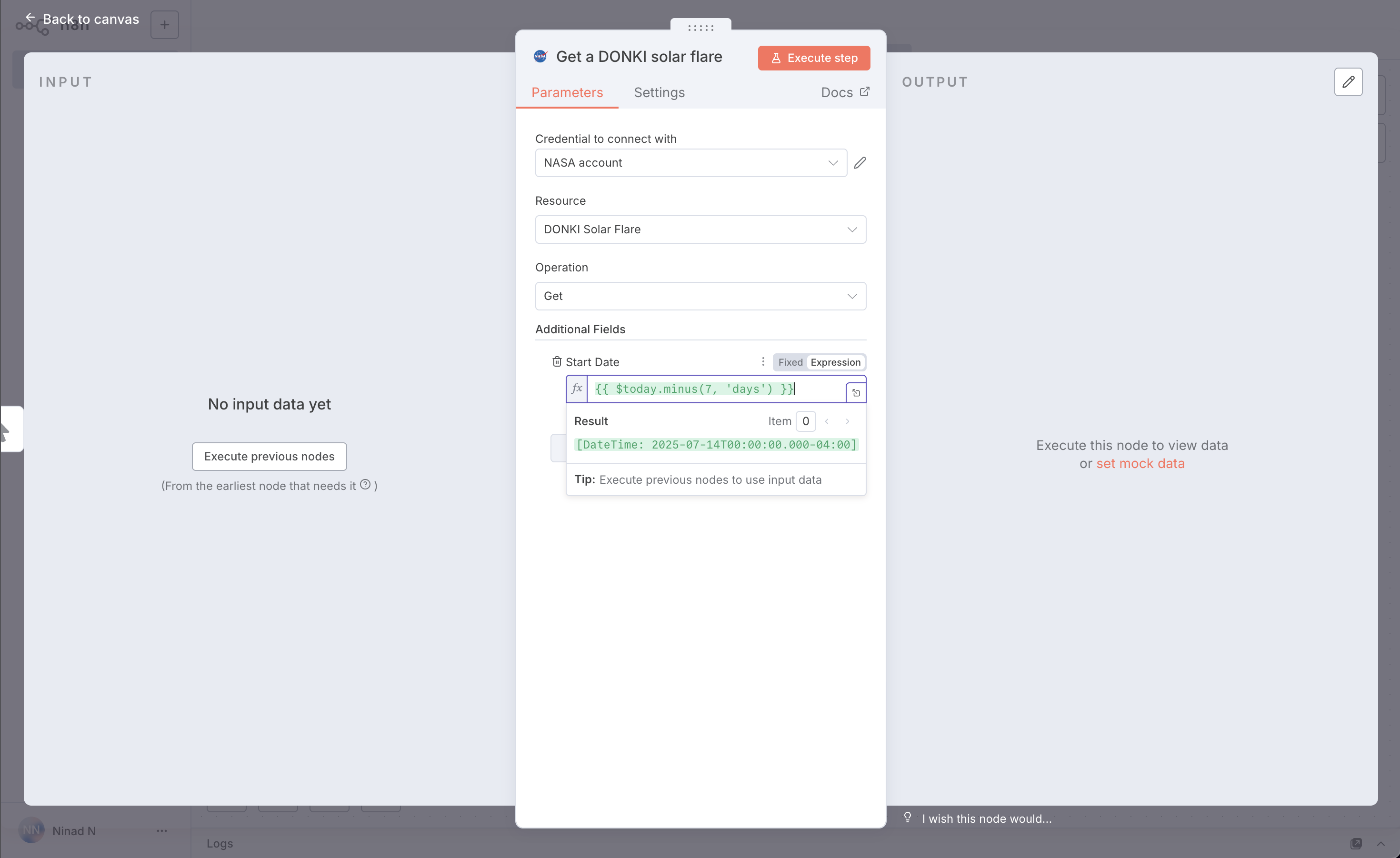
默认情况下,DONKI Solar Flare 提供过去 30 天的数据。要仅显示最近一周的数据,请使用“附加字段”:
¥By default, DONKI Solar Flare provides data for the past 30 days. To limit it to just the last week, use Additional Fields: 1. 选择添加字段。
1 | |
-
选择“开始日期”。
¥Select Start date. 3. 要获取一周前的报告,你可以使用表达式:在“开始日期”旁边,选择“表达式”选项卡,然后选择展开按钮
打开完整的表达式编辑器。¥To get a report starting from a week ago, you can use an expression: next to Start date, select the Expression tab, then select the expand button {.off-glb} to open the full expressions editor. 4. 在“表达式”字段中,输入以下表达式:
¥In the Expression field, enter the following expression: {{ $today.minus(7, 'days') }} 这将生成一个格式正确的日期,日期为当前日期的前七天。
¥This generates a date in the correct format, seven days before the current date.
1 2 | |
- 关闭“编辑表达式”模态框以返回 NASA 节点。
¥Close the Edit Expression modal to return to the NASA node. 2. 现在你可以检查节点是否正常工作并返回预期日期:选择“执行步骤”以手动运行节点。n8n 调用 NASA API,并在“输出”部分显示过去七天的太阳耀斑详情。
¥You can now check that the node is working and returning the expected date: select Execute step to run the node manually. n8n calls the NASA API and displays details of solar flares in the past seven days in the OUTPUT section. 3. 关闭 NASA 节点以返回工作流画布。
¥Close the NASA node to return to the workflow canvas.
步骤 4:使用 If 节点添加逻辑#
¥Step four: Add logic with the If node
n8n 支持工作流中的复杂逻辑。在本教程中,我们将使用 如果节点 创建两个分支,每个分支都根据 NASA 数据生成一份报告。太阳耀斑有五种可能的分类;我们将添加逻辑,将低分类的报告发送到一个输出,将高分类的报告发送到另一个输出。
¥n8n supports complex logic in workflows. In this tutorial we will use the If node to create two branches that each generate a report from the NASA data. Solar flares have five possible classifications; we will add logic that sends a report with the lower classifications to one output, and the higher classifications to another.
添加条件节点:
¥Add the If node:
- 在“NASA”节点上选择“添加节点
”连接器。
¥Select the Add node {.off-glb} connector on the NASA node. 2. 搜索 If。n8n 会显示与搜索匹配的节点列表。
¥Search for If. n8n shows a list of nodes that match the search. 3. 选择“如果”将节点添加到画布。n8n 打开节点。
¥Select If to add the node to the canvas. n8n opens the node.
4. 你需要检查 NASA 数据中 classType 属性的值。执行此操作:
¥You need to check the value of the classType property in the NASA data. To do this:
1. 将 classType 拖入 Value 1。
1 | |
Make sure you ran the NASA node in the previous section
1 2 | |
1 2 | |
- 现在你可以检查节点是否正常工作并返回预期日期:选择“执行步骤”以手动运行节点。n8n 会根据条件测试数据,并在“输出”面板中显示哪些结果为真(true)或假(false)。
¥You can now check that the node is working and returning the expected date: select Execute step to run the node manually. n8n tests the data against the condition, and shows which results match true or false in the OUTPUT panel.
Weeks without large solar flares
1 | |
- 确认节点能够返回一些事件后,即可关闭节点返回画布。
¥Once you are happy the node will return some events, you can close the node to return to the canvas.
步骤 5:从工作流输出数据#
¥Step five: Output data from your workflow
工作流的最后一步是发送两份关于太阳耀斑的报告。在此示例中,你将向 Postbin 发送数据。Postbin 是一项接收数据并将其显示在临时网页上的服务。
¥The last step of the workflow is to send the two reports about solar flares. For this example, you'll send data to Postbin. Postbin is a service that receives data and displays it on a temporary web page.
- 在“如果”节点中,选择标记为“true”的“添加节点
”连接器。
¥On the If node, select the Add node {.off-glb} connector labeled true. 2. 搜索 PostBin。n8n 会显示与搜索匹配的节点列表。
¥Search for PostBin. n8n shows a list of nodes that match the search. 3. 选择“PostBin”。
¥Select PostBin. 4. 选择“发送请求”。n8n 向画布添加节点并打开它。
¥Select Send a request. n8n adds the node to the canvas and opens it. 5. 前往 Postbin 并选择“创建货位”。保持标签页打开,以便在测试工作流时返回。
¥Go to Postbin and select Create Bin. Leave the tab open so you can come back to it when testing the workflow.
6. 复制 bin ID。它类似于 1651063625300-2016451240051。
¥Copy the bin ID. It looks similar to 1651063625300-2016451240051.
7. 在 n8n 中,将你的 Postbin ID 粘贴到“Bin ID”中。
¥In n8n, paste your Postbin ID into Bin ID.
8. 现在,配置要发送到 Postbin 的数据。在“Bin Content”(存储桶内容)旁边,选择“Expression”(表达式)选项卡(需要将鼠标悬停在“Bin Content”上才能显示该选项卡),然后选择展开按钮
打开完整的表达式编辑器。
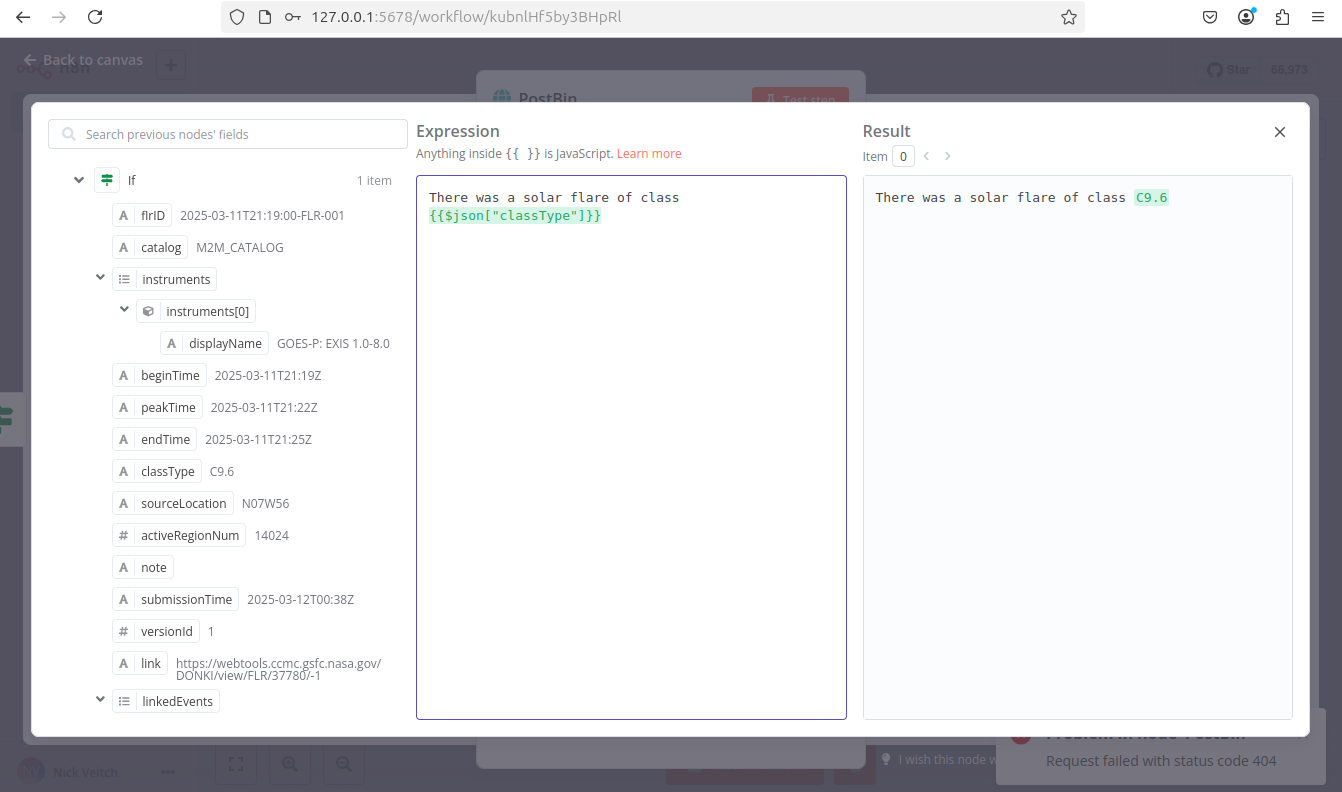
¥Now, configure the data to send to Postbin. Next to Bin Content, select the Expression tab (you will need to mouse-over the Bin Content for the tab to appear), then select the expand button {.off-glb} to open the full expressions editor. 9. 现在你可以将“如果节点”输出中的正确字段拖放到表达式编辑器中,以自动为此标签创建引用。在这种情况下,我们需要的输入是 'classType'。
¥You can now click and drag the correct field from the If Node output into the expressions editor to automatically create a reference for this label. In this case the input we want is 'classType'.
10. 将其拖放到表达式编辑器后,它将转换为以下引用:{{$json["classType"]}}。向对话添加消息,完整表达式为:
1 2 3 4 5 | |
- 关闭表达式编辑器以返回节点。
¥Close the expressions editor to return to the node. 2. 关闭 Postbin 节点以返回画布。
¥Close the Postbin node to return to the canvas. 3. 添加另一个 Postbin 节点,以处理 If 节点返回的错误输出路径:
¥Add another Postbin node, to handle the false output path from the If node: 1. 将鼠标悬停在 Postbin 节点上,然后选择“节点”上下文菜单,再选择“复制节点”,即可复制第一个 Postbin 节点。
1 | |
-
将 If 节点中的 false 连接器拖到新建的 Postbin 节点的左侧。
¥Drag the false connector from the If node to the left side of the new Postbin node.
步骤 6:测试工作流#
¥Step six: Test the workflow
- 现在你可以测试整个工作流程。选择“执行工作流”。n8n 运行工作流,并显示每个阶段的进展情况。
¥You can now test the entire workflow. Select Execute Workflow. n8n runs the workflow, showing each stage in progress. 2. 返回你的 Postbin 仓库。刷新页面以查看输出。
¥Go back to your Postbin bin. Refresh the page to see the output. 3. 如果你想使用此工作流(即,如果你希望它每周自动运行一次),则需要通过选中“激活”开关来激活它。
¥If you want to use this workflow (in other words, if you want it to run once a week automatically), you need to activate it by selecting the Active toggle.
Time limit
Postbin 的 bin 在创建后存在 30 分钟。如果你超过了此时间限制,则可能需要创建一个新的存储库并更新 Postbin 节点中的 ID。
¥Postbin's bins exist for 30 minutes after creation. You may need to create a new bin and update the ID in the Postbin nodes, if you exceed this time limit.
恭喜!#
¥Congratulations
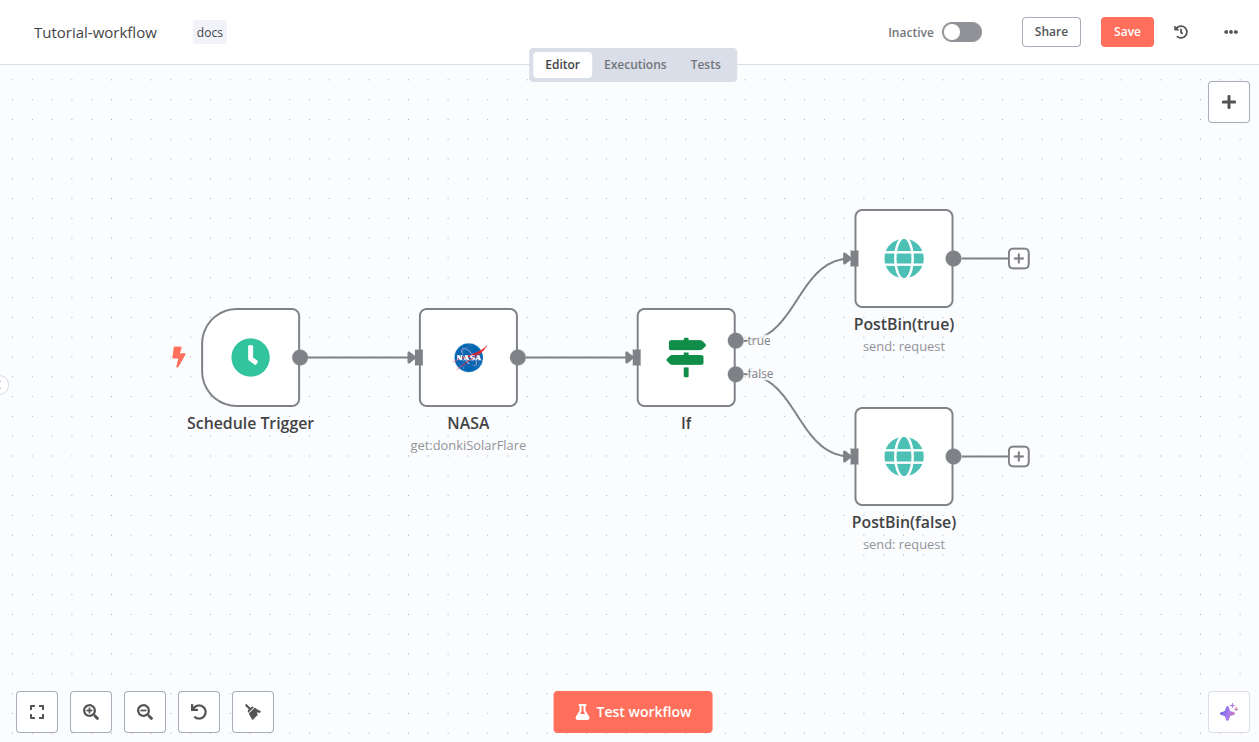
现在,你拥有一个功能齐全且实用的工作流程!它应该看起来像这样:
¥You now have a fully functioning workflow that does something useful! It should look something like this:
Workflow preview placeholder.
在此过程中,你已发现:
¥Along the way you have discovered:
- 如何查找所需的节点并将它们连接在一起?
¥How to find the nodes you want and join them together
- 如何使用表达式操作数据
¥How to use expressions to manipulate data
- 如何创建凭据并将其附加到节点?
¥How to create credentials and attach them to nodes
- 如何在工作流中使用逻辑
¥How to use logic in your workflows
你可以添加很多内容(例如添加更多凭据和一个用于向你发送电子邮件结果的节点),或者你可能已经有了特定的项目想法。无论你下一步该怎么做,以下链接的资源应该会有所帮助。
¥There are plenty of things you could add to this (perhaps add some more credentials and a node to send you an email of the results), or maybe you have a specific project in mind. Whatever your next steps, the resources linked below should help.
下一步步骤#
¥Next steps
- 想了解 AI 的更多用途吗?查找 如何使用 n8n 构建 AI 聊天代理。
¥Interested in what you could do with AI? Find out how to build an AI chat agent with n8n.
¥Take n8n's text courses or video courses.
- 探索更多 工作流模板 中的示例。
¥Explore more examples in workflow templates.